
Put Your Office's Smart Devices on a Separate Wi-Fi: The 15-Minute Setup (2026)
Put office smart devices on their own wifi so a hacked camera can't reach your work laptop. The 15-minute setup, by router, and what breaks.

Researched with AI assistance, reviewed and edited by Tapabrata Biswas.
In this article
- 01Should you put office smart devices on a separate network?
- 02Guest network, IoT network, or VLAN? Pick the right one
- 03How to set it up on any router
- 04On the routers a small office actually owns
- 05The 2.4GHz trap that breaks setup
- 06What breaks when you isolate IoT, and how to fix it
- 07What this post does not cover
- 08Sources
A single hacked smart plug can be the doorway to your work laptop, because on most home-office networks the $12 plug and the machine holding your client files sit on the exact same wifi. Separating them is the fix, and it's one of the few security steps that takes 15 minutes, costs nothing, and genuinely lowers your risk. Most guides tell you why to do it and stop there. This one does the how, on the routers small offices actually own, and it's honest about what stops working.
This is about putting your office's smart devices, cameras, plugs, speakers, TVs, sensors, on a separate wifi so a compromised one can't reach your computers. It's a practical setup, not an enterprise network-design course, and it assumes the gear a small office has: a mesh system or an ISP router, not a rack of managed switches. Router features and names change, so confirm the exact steps in your app.
Should you put office smart devices on a separate network?
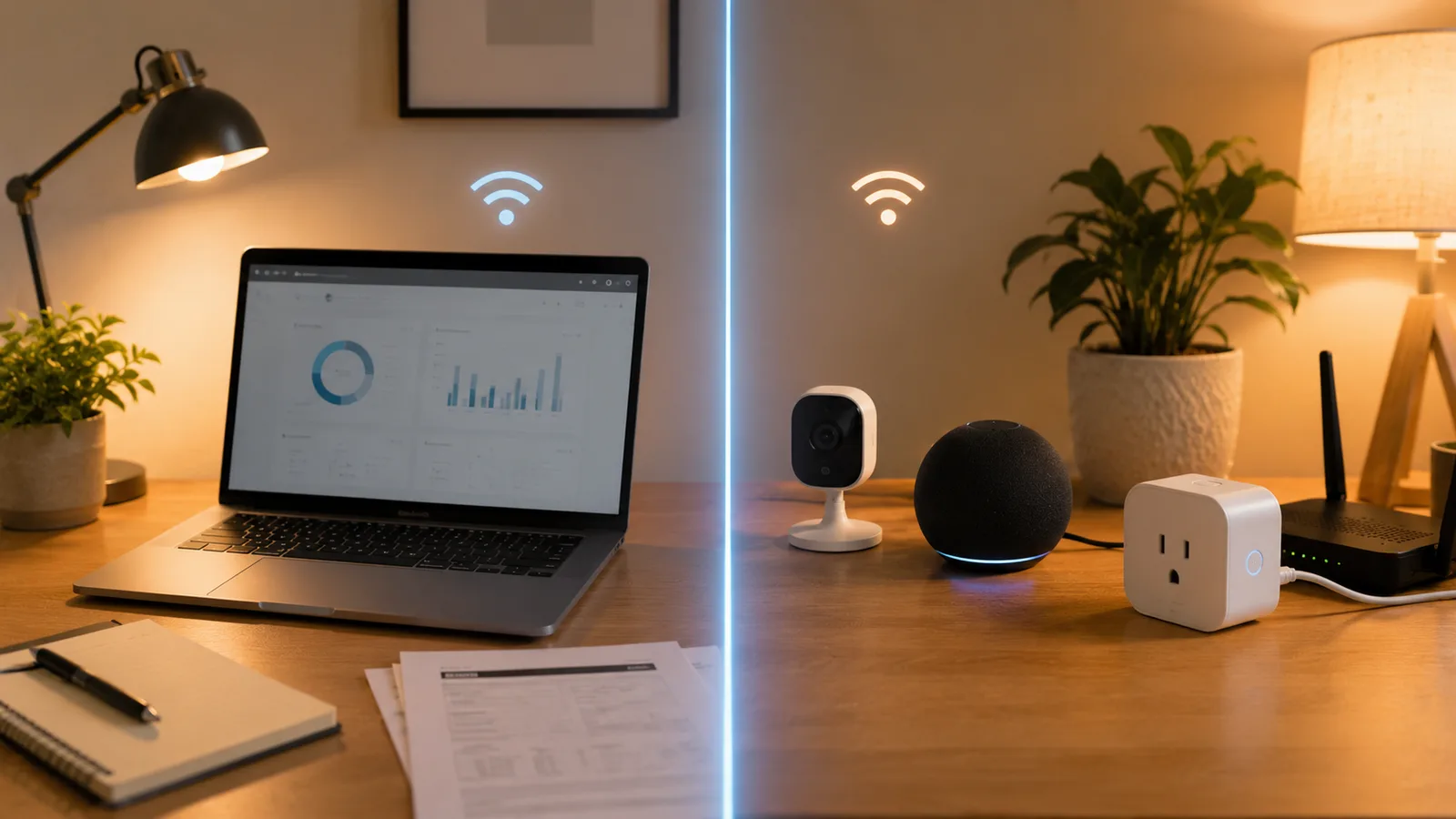
Network segmentation is the practice of splitting your devices into separate groups so a problem in one can't spread to the others, and for a small office it's one of the highest-value free security moves you can make. Smart devices are the weak link: they're cheap, they rarely get security updates, and a compromised camera or plug is a well-known way for an attacker to get onto a network. Put those devices on their own wifi and a hacked one is boxed in, unable to reach the laptop, the backups, or the files that actually matter.
The catch is that "separate network" means three different things, and mixing them up is where people go wrong.
Guest network, IoT network, or VLAN? Pick the right one
The three ways to separate devices are not equal, and only two of them are actually isolation. A guest network is walled off from your main network by default, which is exactly what you want, but it can break local control. A dedicated IoT network, like the one TP-Link's Deco calls an "IoT Network," is a separate 2.4GHz name whose main job is fixing setup problems, and by default it can still talk to your main network, so on its own it isn't security. Device isolation and VLANs are the real segmentation.
| Option | What it does | Isolation strength | Effort and who it suits |
|---|---|---|---|
| Guest network | A second wifi name, walled off from your main network by default | Strong, but it breaks local device control | Easiest, on any router. Good for cameras and plugs you control by voice or app-over-cloud |
| Dedicated IoT SSID (e.g. Deco IoT Network) | A separate 2.4GHz name that fixes setup failures on mesh systems | Weak on its own; it can still reach your main network | Easy on TP-Link Deco and similar. Pair it with device isolation for real security |
| Device isolation | Blocks specific devices from talking to your main-network computers | Strong, applied per device | Easy on routers that offer it (for example the Deco app's Security tab) |
| VLAN with firewall rules | A truly separate network segment with custom rules | Strongest | Advanced, on prosumer gear like UniFi. Overkill for most small offices |
What it does
- Guest network
- A second wifi name, walled off from your main network by default
- Dedicated IoT SSID (e.g. Deco IoT Network)
- A separate 2.4GHz name that fixes setup failures on mesh systems
- Device isolation
- Blocks specific devices from talking to your main-network computers
- VLAN with firewall rules
- A truly separate network segment with custom rules
Isolation strength
- Guest network
- Strong, but it breaks local device control
- Dedicated IoT SSID (e.g. Deco IoT Network)
- Weak on its own; it can still reach your main network
- Device isolation
- Strong, applied per device
- VLAN with firewall rules
- Strongest
Effort and who it suits
- Guest network
- Easiest, on any router. Good for cameras and plugs you control by voice or app-over-cloud
- Dedicated IoT SSID (e.g. Deco IoT Network)
- Easy on TP-Link Deco and similar. Pair it with device isolation for real security
- Device isolation
- Easy on routers that offer it (for example the Deco app's Security tab)
- VLAN with firewall rules
- Advanced, on prosumer gear like UniFi. Overkill for most small offices
For most small offices, the honest answer is a guest network or a device-isolation setting, not a VLAN. A VLAN is stronger, but it needs prosumer gear and real effort, and it solves a problem most small offices don't have. Start with what your router already offers.
How to set it up on any router
The setup is the same handful of steps on nearly every router, and it takes about 15 minutes. Open your router's app or admin page and create a second wifi network, either the guest network or, on gear that has it, a dedicated IoT network. Give it a different name and a different password from your main one.
Then get three settings right. Set the security to WPA2-AES, or WPA2/WPA3 transition mode, because a lot of older smart devices can't join a WPA3-only network and will silently fail to connect. Turn on client isolation, sometimes called AP isolation or device isolation, if your router offers it, so the smart devices can't talk to each other either. And make sure the network broadcasts on 2.4GHz, since most smart devices don't support 5GHz. With that done, open each device's app and reconnect it to the new network instead of your main one.
On the routers a small office actually owns
Most small offices run a mesh system or an ISP gateway, and each handles this a little differently. On a TP-Link Deco, you get both an "IoT Network" (a dedicated 2.4GHz SSID that fixes the band problem below) and a Device Isolation setting in the app's Security tab that blocks chosen devices from your main network, which is the combination to use. On an eero, the built-in Guest Network gives you isolation, though eero doesn't do VLANs, so you accept the local-control tradeoffs. Netgear Orbi and most ISP gateways have a Guest Network toggle, sometimes with an "allow devices to see each other" option you'll want to turn off.
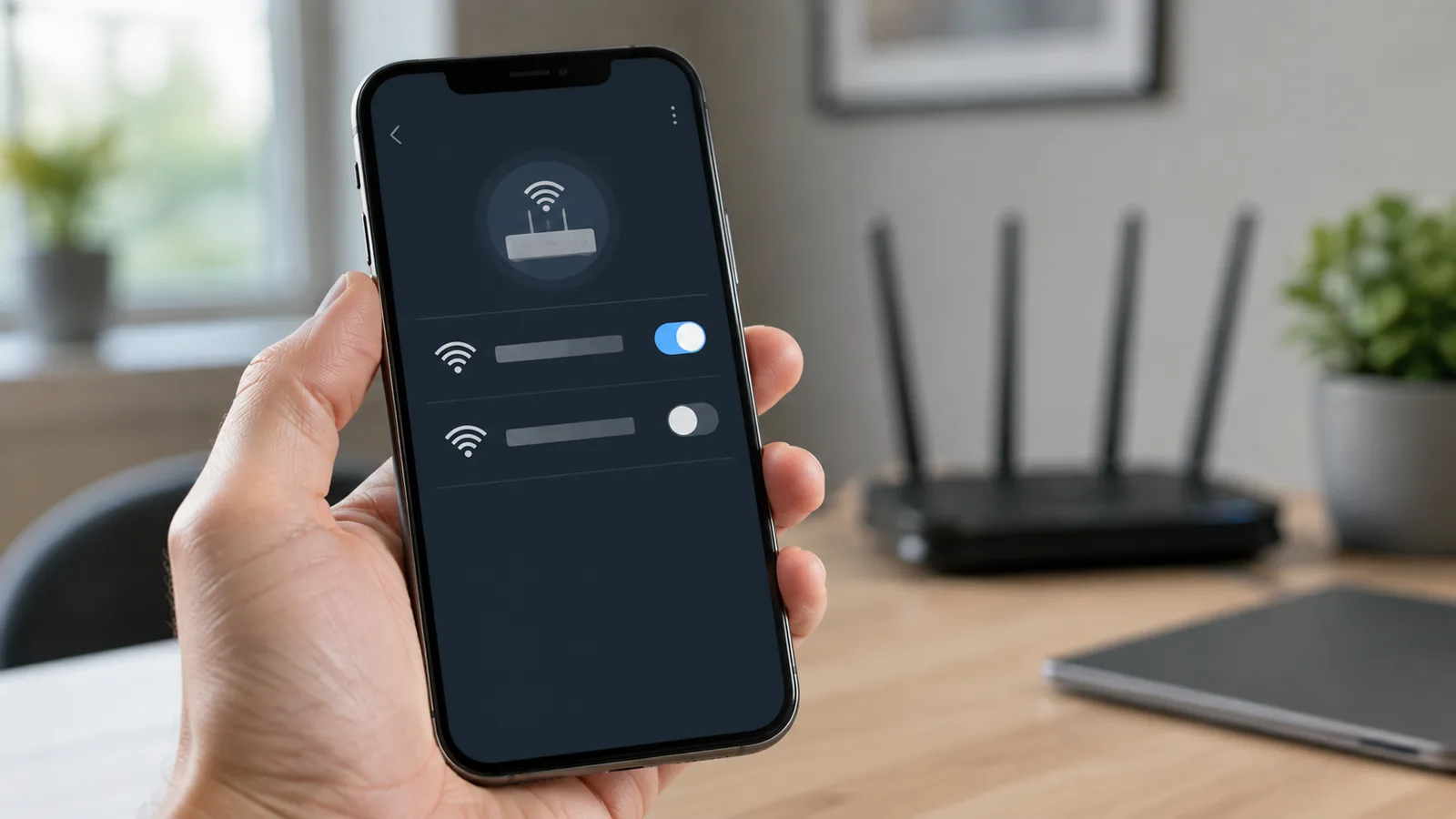
If you happen to run prosumer gear like UniFi, you can build a true VLAN with firewall rules, which is the strongest option and also the only one that needs real networking knowledge. For a business already leaning on smart hardware, this pairs with smart devices worth buying for a small business and the network side of a budget-tiered smart office build.
The 2.4GHz trap that breaks setup
The most common reason a smart device "won't connect" isn't a fault, it's the band. Most smart plugs, bulbs, cameras, and sensors are 2.4GHz only, and mesh systems usually broadcast both 2.4GHz and 5GHz under one network name. During setup your phone connects to the faster 5GHz band, the device can only see 2.4GHz, and the two can't find each other, so setup fails with a vague error.
A dedicated IoT network with a 2.4GHz-only name fixes this by keeping your phone and the device on the same band. If you don't have that feature, the workaround is to temporarily turn off the 5GHz band, or use a 2.4GHz-only guest network, while you add the device.
What breaks when you isolate IoT, and how to fix it
Isolation has a real cost, and the guides that skip it leave you frustrated. Once a device is on the walled-off network, your phone on the main network often can't find it to set up or control, so you have to hop your phone onto the IoT network for those tasks. Casting to a TV, printing to a network printer, a voice assistant controlling a speaker on the other side, and local smart-home automations can all break across the divide, because those depend on devices seeing each other.
Two fixes cover most of it. Put your hub or voice speaker on the same network as the devices it controls, so the local commands stay on one side of the wall. And accept that cloud control still works: the manufacturer's app talking to its servers reaches the device regardless of network, which is why a security camera keeps working in its app even when isolated. If a specific device relies on local control you can't give up, like a printer everyone prints to, it's fine to leave that one on the main network and isolate the riskier gadgets. Security cameras are the classic case worth isolating, which is why our guide to small business security cameras is the first place this pays off.
What this post does not cover
This is a practical guide to separating smart devices on a small-office wifi, not a full network-security audit or an enterprise VLAN design manual. It also isn't a router buyer's guide; it works with whatever router you already have. If your office handles regulated data or you're unsure about your setup, a network or security professional can design proper segmentation and firewall rules beyond what a consumer router offers.
Router features, app layouts, and the names of these settings change often, so treat the specifics here as current to August 2026 and confirm the exact steps in your router's own app before you start moving devices.
Sources
- Securing Your Internet-Connected Devices at Home, US Federal Trade Commission (the case for isolating and securing smart devices)
- How to set up Device Isolation on TP-Link Router/Deco, TP-Link (device isolation, IoT network, and 2.4GHz setup on a common mesh system)
- Securing the Internet of Things, Cybersecurity and Infrastructure Security Agency (why unpatched IoT devices are a network risk)
Frequently asked questions

Written by
Tapabrata Biswas
Tech Researcher
I test AI productivity tools and research home-automation gear the way most people use them. Not in a lab, but on an ordinary desk with an ordinary internet connection. The only test that matters: does it save you time?
Share the Post with Your Besties
Get the plain-English tech brief
One email a week on AI tools and smart-home tech. No jargon, no hype.