
Battery Backup (UPS) for a Home Office: The Honest Runtime Math (2026)
Do you need a battery backup for a home office? The honest runtime math, why to back up the internet not the PC, watt sizing, and the pure-sine-wave trap.

Researched with AI assistance, reviewed and edited by Tapabrata Biswas.
In this article
- 01Do you need a battery backup for a home office?
- 02Back up the internet, not the PC
- 03How long will it actually last? The runtime math
- 04The four tiers, and what each really does
- 05Watts, not VA, and the pure-sine-wave trap
- 06What not to plug into the battery side
- 07The real cost: batteries wear out
- 08So which one should you get?
- 09What this post does not cover
- 10Sources
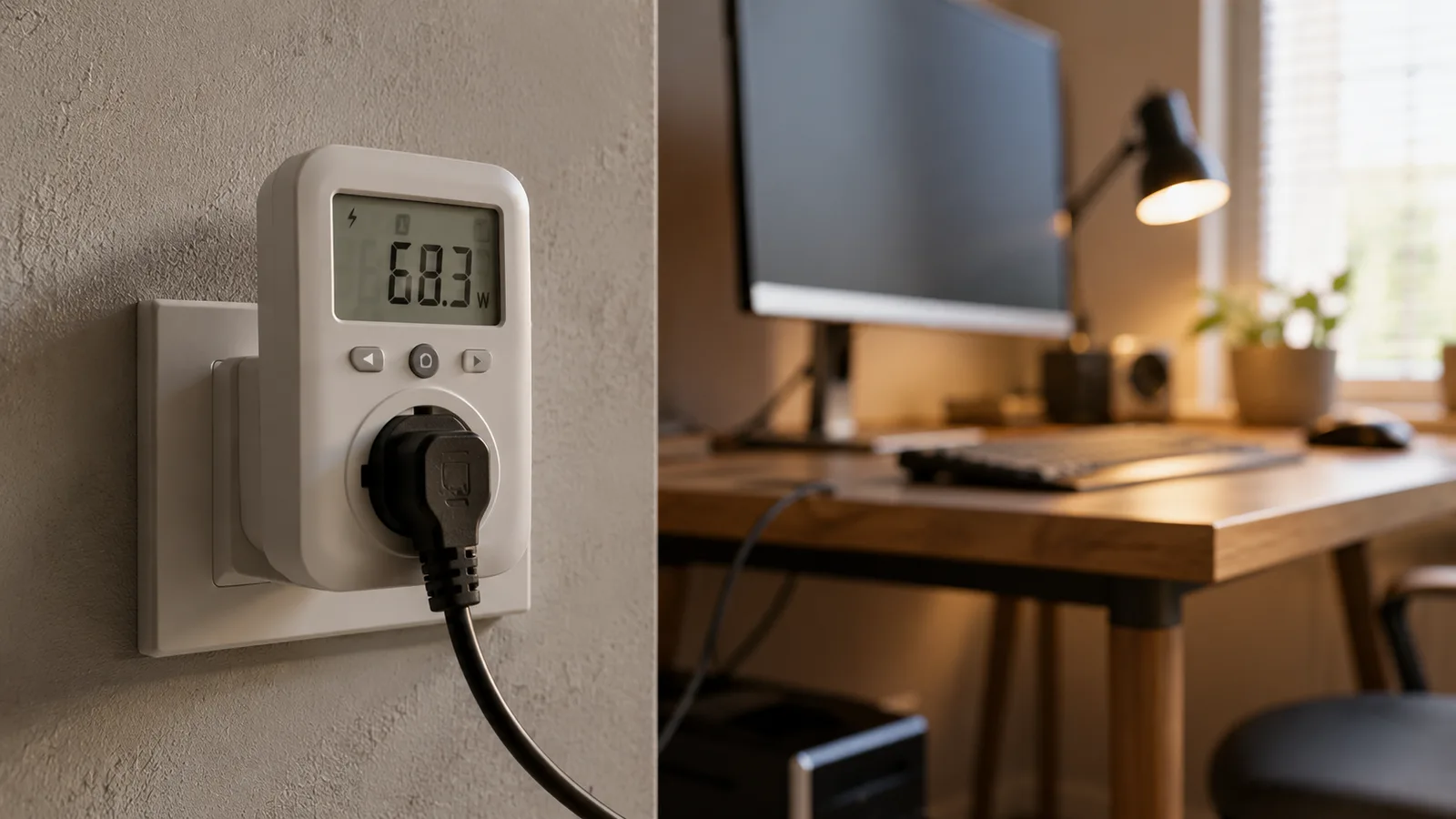
A wifi router and modem together draw about 25 watts, while a desktop and monitor pull 250 or more, and that ten-to-one gap is the whole secret to backing up a home office cheaply. It's why a $70 battery keeps your internet alive for two hours but your PC for ten minutes. Most guides bury that math under a list of products to buy. This puts it first, because it changes what you should actually get.
This is about a UPS, an uninterruptible power supply, for surviving power outages and blips at a home-office desk, focused on keeping your work and internet alive. It isn't about whole-home battery systems, solar, or generators. Prices and specs here reflect August 2026 and change often, and these picks come from published specs and independent reviews, not our own lab testing, so confirm the current details before you buy.
Do you need a battery backup for a home office?
A UPS is a box with a battery that keeps your gear running for a short window when the power cuts out, and whether you need one comes down to what an outage costs you. If a blip drops your video call, corrupts a file you hadn't saved, or knocks you offline mid-task during work hours, a UPS pays for itself the first time it saves you. If you work on a laptop in an area that rarely loses power, you may not need one at all, because the laptop is already its own battery backup.
For everyone in between, the highest-value setup is also the cheapest, and almost nobody leads with it.
Back up the internet, not the PC
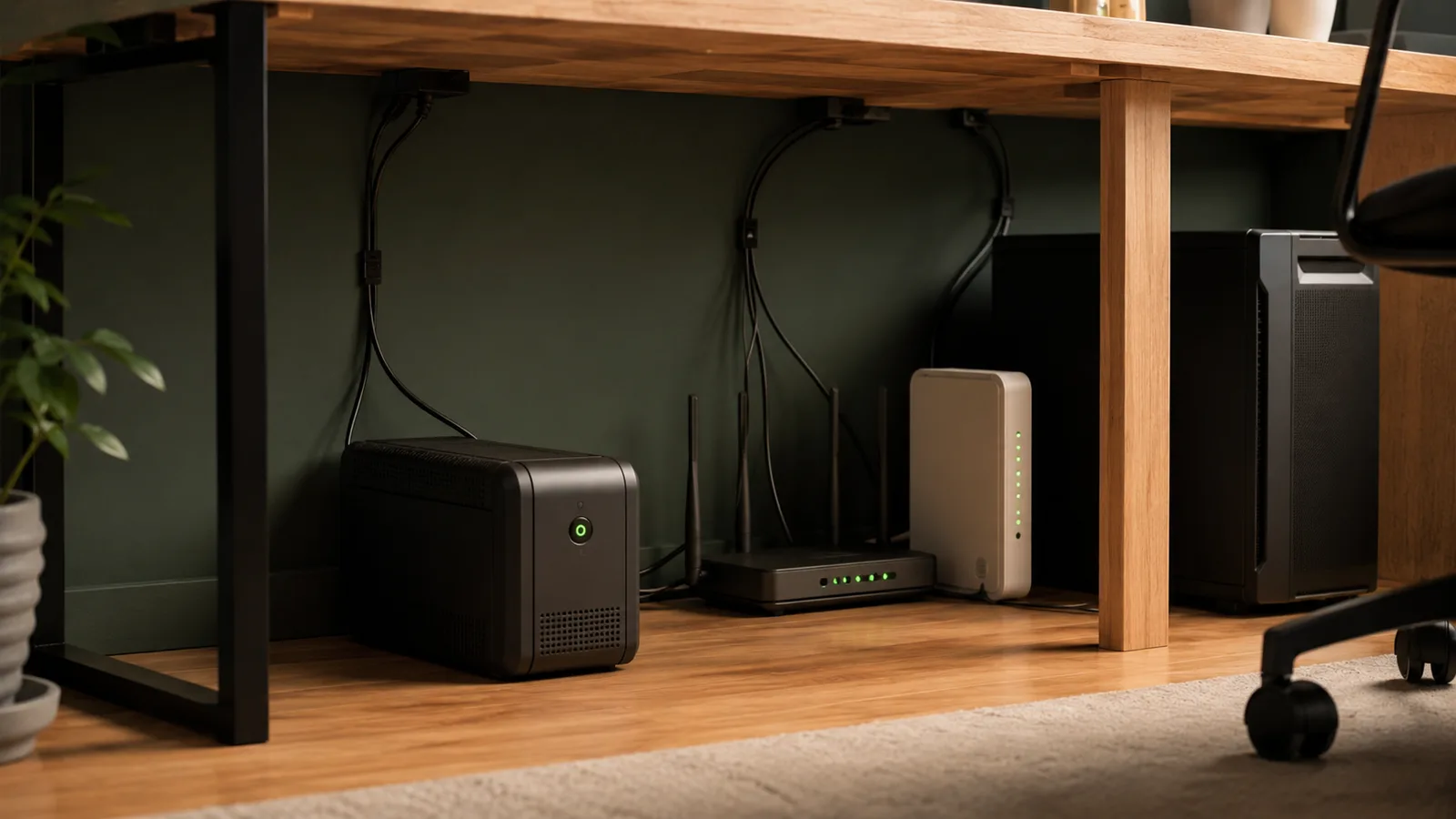
The single best move for most home offices is to put a small UPS on just the modem and router. Your laptop already has a battery, so when the power drops, the thing that actually stops your work is the internet going dark. Keep the network gear alive and you keep working, join the call, and ride out the blip as if nothing happened.
That gear sips power. At around 25 watts for a modem, router, and any mesh node, a cheap 300 to 425 VA unit runs it for one to two hours, which covers the short outages and brownouts that cause most of the disruption. A full desktop is a different story, and the reason is just arithmetic.
How long will it actually last? The runtime math
Runtime is the battery's energy in watt-hours divided by the load in watts, and that one formula explains everything. A small UPS holds roughly 45 usable watt-hours. Feed it a 25-watt network load and it lasts about 45 divided by 25, close to two hours. Feed the same battery a 250-watt desktop and monitor and you get 45 divided by 250, about ten minutes.
Neither number is a flaw. The two hours keeps you online through a typical blip; the ten minutes is exactly enough to save your work and shut down cleanly during a real outage. The mistake is expecting a desk-side UPS to run a desktop for hours. It can't, at any price you'd put under a desk. To see where that 250 watts comes from, our breakdown of what your desk gear actually draws has the per-device numbers.
The four tiers, and what each really does
UPS units sort into a few clear tiers by size, and matching the tier to your setup matters more than chasing the highest VA number. A laptop office and a desktop office want different boxes.
| UPS size | What it realistically powers | Rough runtime | Rough price | Best for |
|---|---|---|---|---|
| Mini, 300 to 425 VA | Just the modem and router (about 25 W) | 1 to 2 hours of internet | $45 to $70 | Keeping Wi-Fi and VoIP alive through short outages |
| Small, 600 to 700 VA | Network gear, or a laptop and monitor briefly | About 1.5 to 2 hrs network, 20 to 30 min laptop | $80 to $110 | A laptop-based home office plus the network |
| Mid, 1000 to 1500 VA (line-interactive) | Network plus a desktop and monitor | 4 hrs and up on network, 15 to 30 min on the desktop | $150 to $220 | A desktop office that needs time to save and shut down |
| Pure sine wave, 1500 VA | The same, but for modern Active-PFC or gaming PSUs | Similar to the mid tier | $180 to $240 | Any PC whose power supply rejects a simulated sine wave |
What it realistically powers
- Mini, 300 to 425 VA
- Just the modem and router (about 25 W)
- Small, 600 to 700 VA
- Network gear, or a laptop and monitor briefly
- Mid, 1000 to 1500 VA (line-interactive)
- Network plus a desktop and monitor
- Pure sine wave, 1500 VA
- The same, but for modern Active-PFC or gaming PSUs
Rough runtime
- Mini, 300 to 425 VA
- 1 to 2 hours of internet
- Small, 600 to 700 VA
- About 1.5 to 2 hrs network, 20 to 30 min laptop
- Mid, 1000 to 1500 VA (line-interactive)
- 4 hrs and up on network, 15 to 30 min on the desktop
- Pure sine wave, 1500 VA
- Similar to the mid tier
Rough price
- Mini, 300 to 425 VA
- $45 to $70
- Small, 600 to 700 VA
- $80 to $110
- Mid, 1000 to 1500 VA (line-interactive)
- $150 to $220
- Pure sine wave, 1500 VA
- $180 to $240
Best for
- Mini, 300 to 425 VA
- Keeping Wi-Fi and VoIP alive through short outages
- Small, 600 to 700 VA
- A laptop-based home office plus the network
- Mid, 1000 to 1500 VA (line-interactive)
- A desktop office that needs time to save and shut down
- Pure sine wave, 1500 VA
- Any PC whose power supply rejects a simulated sine wave
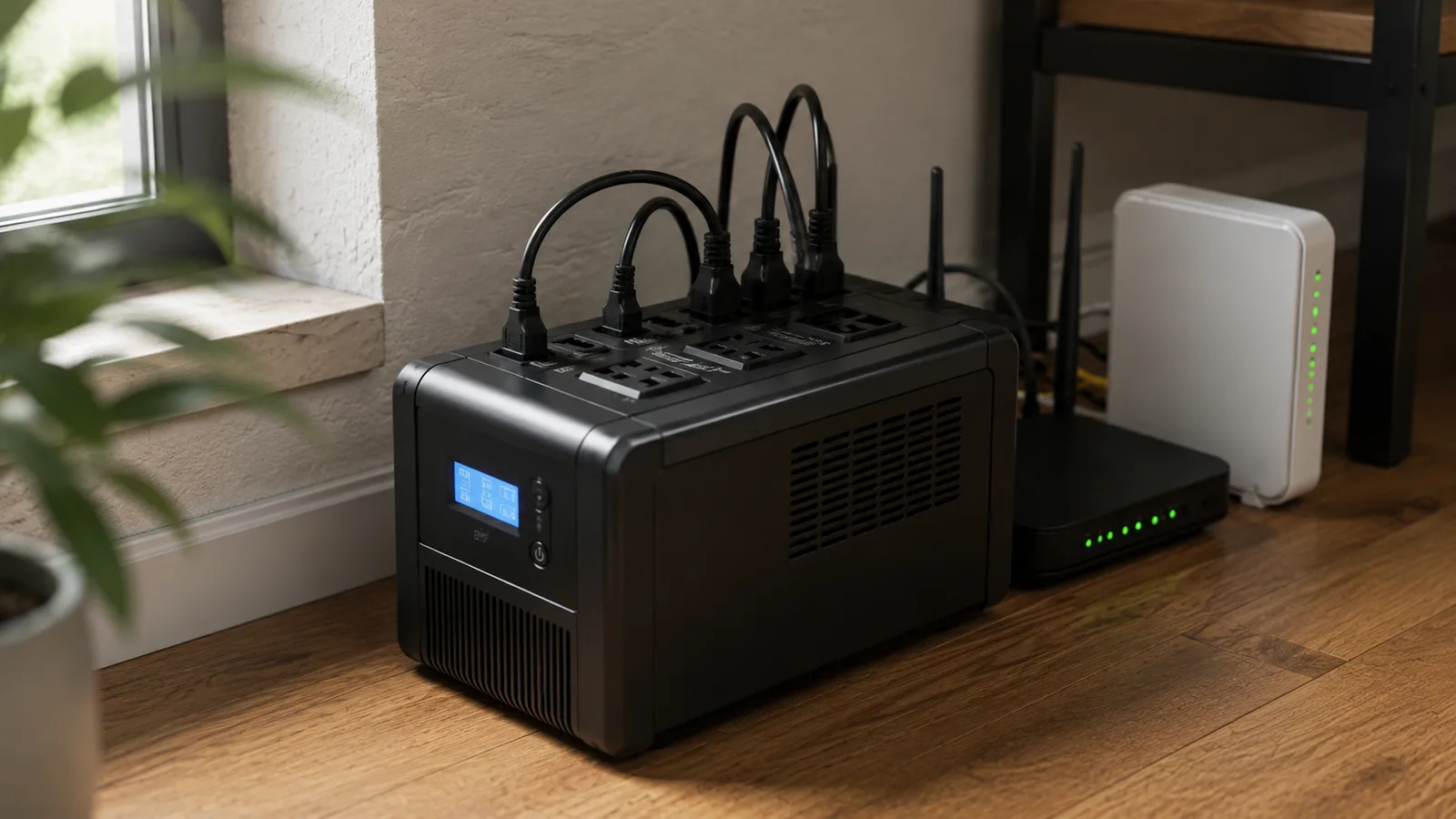
The pattern is simple: buy the smallest tier that covers what you actually need to keep alive. If that's just the internet, the mini tier is genuinely enough, and spending $200 on a big unit to run a router you could back up for $60 is money you didn't need to spend.
Watts, not VA, and the pure-sine-wave trap
The number on the front of the box is VA, and it's not the number that matters. Uninterruptible power supplies are rated in both VA and watts, and the watt rating is the real ceiling. Cheap standby units run a power factor of 0.6 to 0.7, so a 1500 VA unit only delivers around 900 to 1050 real watts. Always size against the watt figure, and add up the actual watts of the gear you're plugging in.
Then there's the trap that catches desktop owners. Modern and gaming PCs use Active-PFC power supplies, and those can reject the stepped, simulated sine wave a cheaper UPS produces the instant it switches to battery, which shuts the PC off, the exact failure you bought the UPS to prevent. If you're protecting that kind of PC, you need a pure-sine-wave model. For a router, a laptop charger, or a phone, a simulated-sine unit is fine and costs less.
What not to plug into the battery side
Some things don't belong on a UPS, and plugging them in either wastes the battery or trips the unit. A laser printer is the classic mistake: it pulls a big surge when the fuser warms up, which can overload a small UPS and shut it down at the worst moment. Space heaters, hair dryers, and anything else that turns electricity into heat will drain or overload the battery in seconds.
Many UPS units split their outlets into two banks: battery-plus-surge, and surge-only. Put the high-draw gear on the surge-only side or straight into the wall, and reserve the battery outlets for the network gear, computer, and monitor. This is the kind of detail that belongs alongside a budget-tiered smart office build, where the UPS is one line item among the rest of the desk.
The real cost: batteries wear out
A UPS is not a buy-it-once purchase, and the honest total cost includes the battery you'll replace. The sealed lead-acid battery inside a typical consumer unit lasts around three years, sometimes less in a warm room, and a replacement runs roughly $25 to $40. So a $70 mini unit is really about $70 plus a battery every few years, and a unit that no longer holds charge is worse than useless because it fails silently until the moment you need it.
Most units have a self-test and will beep or flag a failed battery, so check it once in a while rather than assuming it's fine. Budget for the swap, and a UPS stays cheap insurance instead of becoming a surprise.
So which one should you get?
For a laptop-based home office, a mini or small UPS on the modem and router is the whole answer, and it's the setup we'd point most people to first. You keep the internet and your calls alive for a couple of hours, you spend well under $100, and you're done. Add the laptop to it only if you want the monitor and dock to stay up too.
For a desktop office, step up to a mid-size line-interactive unit so you get time to save and shut down, and choose a pure-sine-wave model if your PC has an Active-PFC supply. Either way, the goal isn't to work through a blackout. It's to make a power cut a non-event instead of a lost hour, which is the same logic behind most of the smart devices worth buying for a small business: quiet insurance against the small failures that add up.
What this post does not cover
This is a guide to desk-side battery backup for a home office, not whole-home battery storage, solar, or standby generators, which solve a different problem at a different price. It also isn't a ranked "best UPS" review with hands-on testing, since we don't run a test lab; the tiers and picks here come from published specifications and independent reviews.
UPS models, capacities, and prices change quickly, and your real runtime depends on your specific gear and the age of the battery, so treat the numbers here as current to August 2026 and confirm the watt rating and sine-wave type against your own equipment before you buy.
Sources
- Do I Need a Battery Backup for My Router?, How-To Geek (the case for backing up network gear specifically)
- The Best UPS Battery Backups, PCMag (independent testing of consumer UPS units)
- What is a UPS and how does it work, APC by Schneider Electric (UPS types, VA vs watts, and sizing)
Frequently asked questions

Written by
Tapabrata Biswas
Tech Researcher
I test AI productivity tools and research home-automation gear the way most people use them. Not in a lab, but on an ordinary desk with an ordinary internet connection. The only test that matters: does it save you time?
Share the Post with Your Besties
Get the plain-English tech brief
One email a week on AI tools and smart-home tech. No jargon, no hype.