
Smart Home Office Setup: A Practical, Budget-Tiered Build (2026)
Build a smart home office without the vendor fluff: honest 2026 budget tiers, real ergonomics and energy numbers, the upgrades worth it, what to skip.

Researched with AI assistance, reviewed and edited by Tapabrata Biswas.
In this article
- 01What does a smart home office actually need (and what can you skip)?
- 02What's the best home office setup at each budget?
- 03How do you set up a laptop and monitor correctly?
- 04One cable or two? Docks and powering your laptop
- 05How do you look and sound good on video calls?
- 06What does a home office cost to run? (the energy bill nobody mentions)
- 07Which smart upgrades are actually worth it in a home office?
- 08How do you set up a home office in a small space?
- 09What this guide does not cover
- 10Sources
Most home office advice is written by someone selling a desk, a chair, a webcam, or an entire smart ecosystem. The result is a shopping list where everything is essential and nothing is optional. This guide does the opposite. It covers what you actually need, what a real setup costs in 2026, the smart upgrades worth the money, and the ones to skip.
About $150 to $300 buys a functional, ergonomically sane home office. The expensive parts of most setups, the standing desk and the second monitor and the lighting kit, are comfort and productivity upgrades, not the foundation. Get the foundation wrong and no gadget rescues it.
Where these picks come from is worth saying upfront: published specs, ergonomics guidance from bodies like OSHA and Mayo Clinic, energy figures from the U.S. government, and owner consensus, not a studio we built and tested ourselves. We earn nothing if you buy anything here. The aim is a straight read on what works.
What does a smart home office actually need (and what can you skip)?
A smart home office is a normal home-office setup where the power, lighting, and climate are automated on a schedule instead of left running by hand. The "smart" part is a layer on top. Underneath it sits the same five things every good desk needs, and those come first.
The non-negotiables are a chair that supports your back, a way to get your screen to eye level with an external keyboard and mouse, light you can work by, reliable internet, and decent audio for calls. Everything else is an upgrade you add once those are sorted.
| Buy first (essential) | High value | Skip for now |
|---|---|---|
| Supportive chair, or a lumbar cushion on a firm dining chair | External monitor, 27-inch 1440p | RGB and ambient mood lighting |
| Laptop stand plus external keyboard and mouse | A real webcam at eye level | A second monitor you won't actually use |
| A task light, around 500 lux at the desk | Sit-stand desk | A premium standing desk bought before a good chair |
| Reliable internet | One smart plug to cut standby power | Novelty gadgets, like a smart mug warmer |
| Headset or microphone for calls | Smart bulb for focus lighting | A mesh Wi-Fi system for a single room |
The pattern in that last column is the theme of this guide. Most "must-have home office" lists are padded with things that look like a setup rather than build one.
What's the best home office setup at each budget?
The honest answer is that three very different budgets all produce a perfectly good office, because the cheapest tier already fixes the posture and eye-strain problems that matter most. The tiers below are category guidance with rough 2026 US prices, not specific model picks. Prices move, so treat them as ranges checked in June 2026.
| Tier | What's in it | Rough 2026 cost |
|---|---|---|
| Starter | Supportive chair or lumbar cushion, laptop stand, external keyboard and mouse, task lamp, headset with mic, one smart plug | $150 to $300 |
| Solid | Ergonomic chair, 27-inch 1440p monitor, laptop stand or basic dock, keyboard and mouse, 1080p webcam, task light, smart plug | $450 to $750 |
| Premium | Sit-stand desk, higher-end chair, 32-inch 4K or ultrawide, USB-C or Thunderbolt dock, good webcam, key light, smart bulbs | $1,200 and up |
Notice where the money goes as you climb. The jump from Starter to Solid mostly buys a real monitor and a proper chair, which is the upgrade most people feel. The jump from Solid to Premium buys convenience: a desk that rises, one cable instead of three, a sharper screen. They're nice, not what makes you comfortable or productive, and many people overspend here while sitting on a kitchen chair. The price-sensitive, do-it-yourself instinct behind every "IKEA home office" search is the right one. Spend on the chair and the screen, improvise the rest.
To sanity-check the smart-device portion against your own room, our smart home budget calculator totals the upfront and recurring cost.
How do you set up a laptop and monitor correctly?
Correct ergonomics means your screen sits at eye level and your forearms rest level with the desk, which a laptop alone makes almost impossible. A laptop forces a cruel trade: either the screen is too low and you hunch, or the keyboard is too high and your wrists bend. The fix is the single highest-return purchase in this whole guide, and it costs $25 to $40.
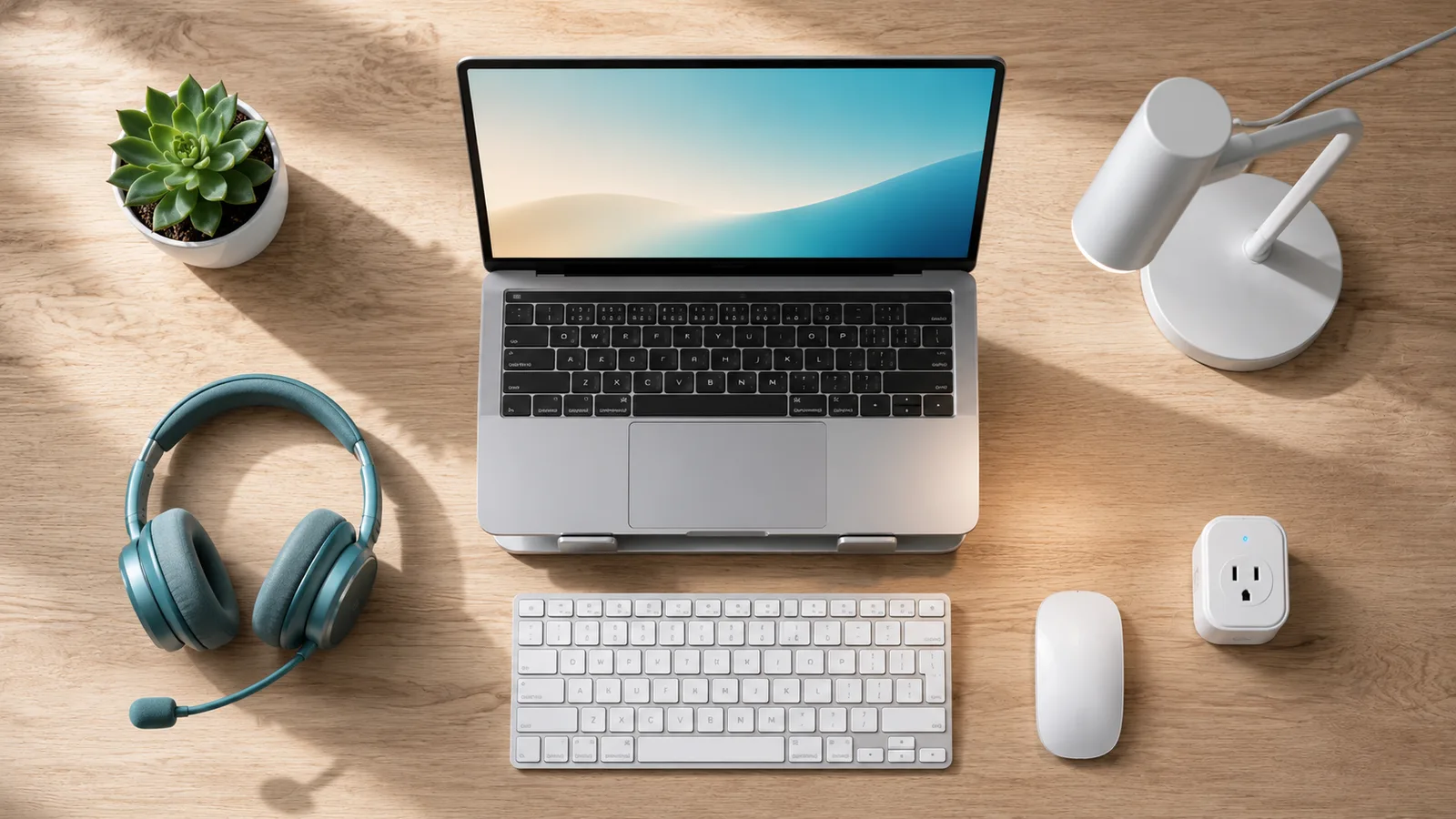
Raise the laptop on a stand until the top of the screen reaches eye level, then add an external keyboard and mouse so your hands drop to a natural height. If you add an external monitor, the same rules apply to it, and a 27-inch 1440p or 32-inch 4K panel is the practical sweet spot for a single screen.
| Part | Target |
|---|---|
| Desk height | About 28 to 30 inches (71 to 76 cm), or set to your seated elbow height |
| Monitor distance | An arm's length, 20 to 40 inches (50 to 100 cm) from your eyes, per OSHA |
| Monitor height | Top of the screen at or just below eye level, sightline about 15 to 20 degrees down |
| Chair | Feet flat, thighs parallel to the floor, elbows near 90 degrees, lower back supported, per Mayo Clinic |
| Desk light | About 500 lux at the surface, lamp to the side, screen perpendicular to the window |
Those numbers come from OSHA's computer-workstation guidance and Mayo Clinic's office ergonomics page, not from a furniture catalog. The lighting target of roughly 500 lux for desk work comes from standard office lighting levels. You don't need a $700 chair to hit any of them. A firm dining chair, a cushion for lumbar support, a stack of books under the laptop, and a $30 keyboard will put your body in the same position a premium setup does.
One cable or two? Docks and powering your laptop
A docking station is a hub that turns a single cable into power, displays, and peripherals, so you plug in once instead of four times. It's the upgrade buyers research least, which is why so many buy the wrong one.
Two specs decide it. Power delivery has to match your laptop: a 13 or 14-inch machine is usually happy with 65 watts, while a 16-inch performance laptop wants 100 watts or more, and an underpowered dock charges slowly or not at all. The second is how many external displays the dock can actually drive, which depends as much on your laptop's graphics as on the dock. Some Apple silicon laptops cap the number of external monitors regardless of the dock, a limit that surprises people who assumed two screens would just work. Check your laptop's display limit before you buy a dual-monitor dock.
How do you look and sound good on video calls?
The most common video-call mistake is the camera pointing up your nose, because a laptop sits below eye level. Once your screen is at the right height, the built-in webcam is too low, so the fix is to put a separate webcam at the top of your monitor with the lens at roughly eye level, never above your hairline.
Lighting matters more than camera resolution. Face a window or a light, don't sit with one behind you, or you turn into a silhouette. A small key light or a daylight bulb in front of you, around 4000 to 5000 kelvin, helps more than upgrading from a 1080p to a 4K webcam. For sound, almost any headset microphone beats a laptop's built-in mic, which sits next to the fans and picks up the whole room.
What does a home office cost to run? (the energy bill nobody mentions)
A home office costs roughly $30 to $90 a year in electricity, depending on whether you run a laptop or a desktop and how much gear you leave on overnight. Almost no setup guide mentions it, though it's the one ongoing cost of working from home that a smart home can trim.
The math is simple at the early-2026 US average of about 18 cents per kWh, per the U.S. Energy Information Administration. A laptop is cheap to run. A desktop and a monitor left on around the clock are not.
| Device | Typical draw | Rough yearly cost |
|---|---|---|
| Laptop, 8 hours a day | about 50 W | $20 to $25 |
| Desktop, 8 hours a day | about 200 to 300 W | $80 to $130 |
| Monitor on 8 hours a day | about 40 W | $15 to $22 |
| Monitor left on 24/7 | about 40 W | $45 to $65 |
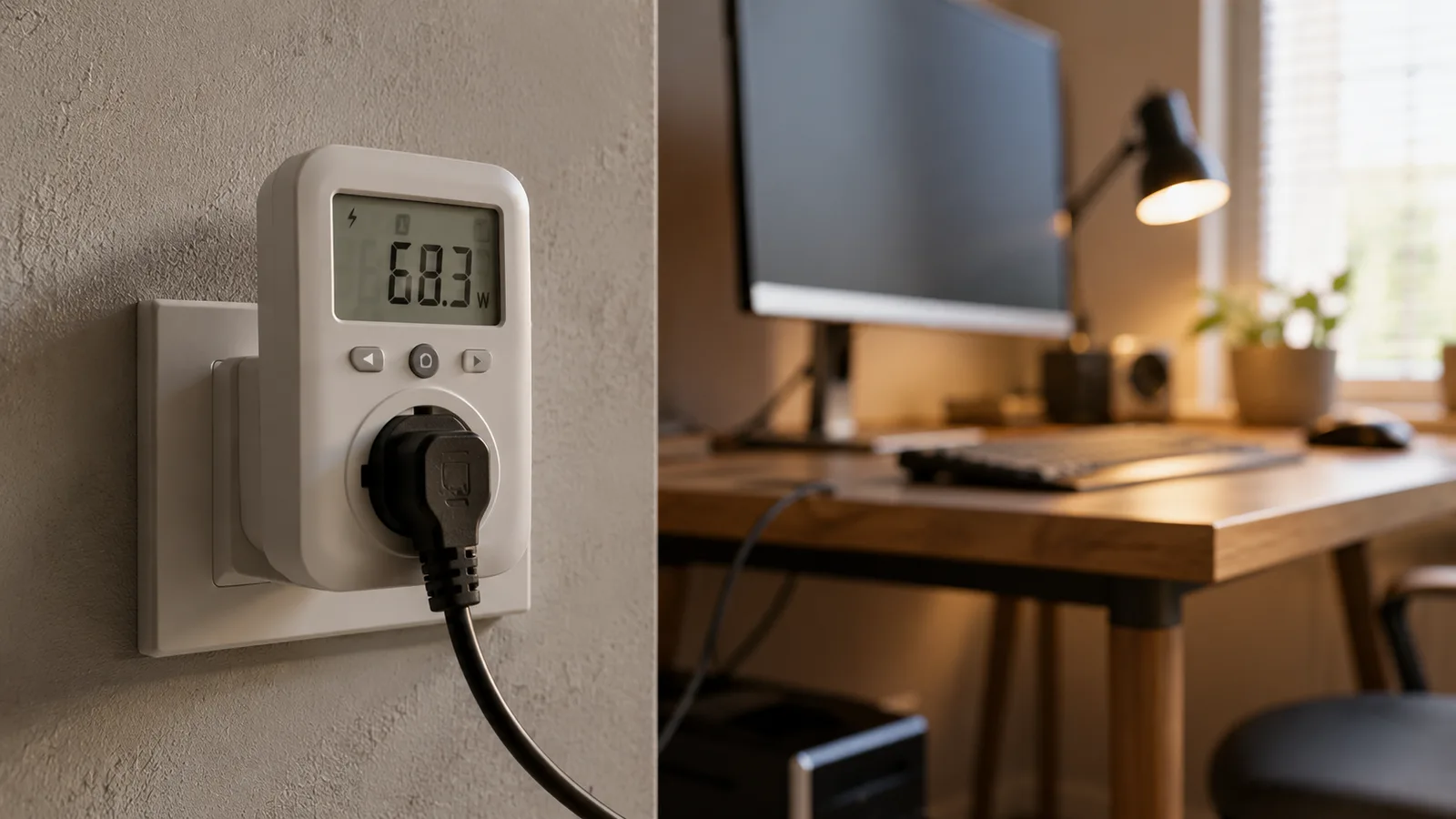
The hidden cost is standby power, the electricity your gear draws while switched off but still plugged in, which the U.S. Department of Energy puts at 5 to 10 percent of a home's electricity and up to $183 a year. A monitor, a desktop, speakers, chargers, and a printer all sip power on standby. This is exactly where automation saves energy: a smart plug on a schedule kills that draw without you remembering to pull plugs. To estimate your own number, our energy savings calculator does the arithmetic.
Which smart upgrades are actually worth it in a home office?
The smart upgrades worth buying are the ones that switch things off, not the ones that switch things on. That single test sorts a useful smart office from an expensive one, because a gadget that only adds convenience also adds standby draw, while a plug or schedule that powers gear down is what pays you back.
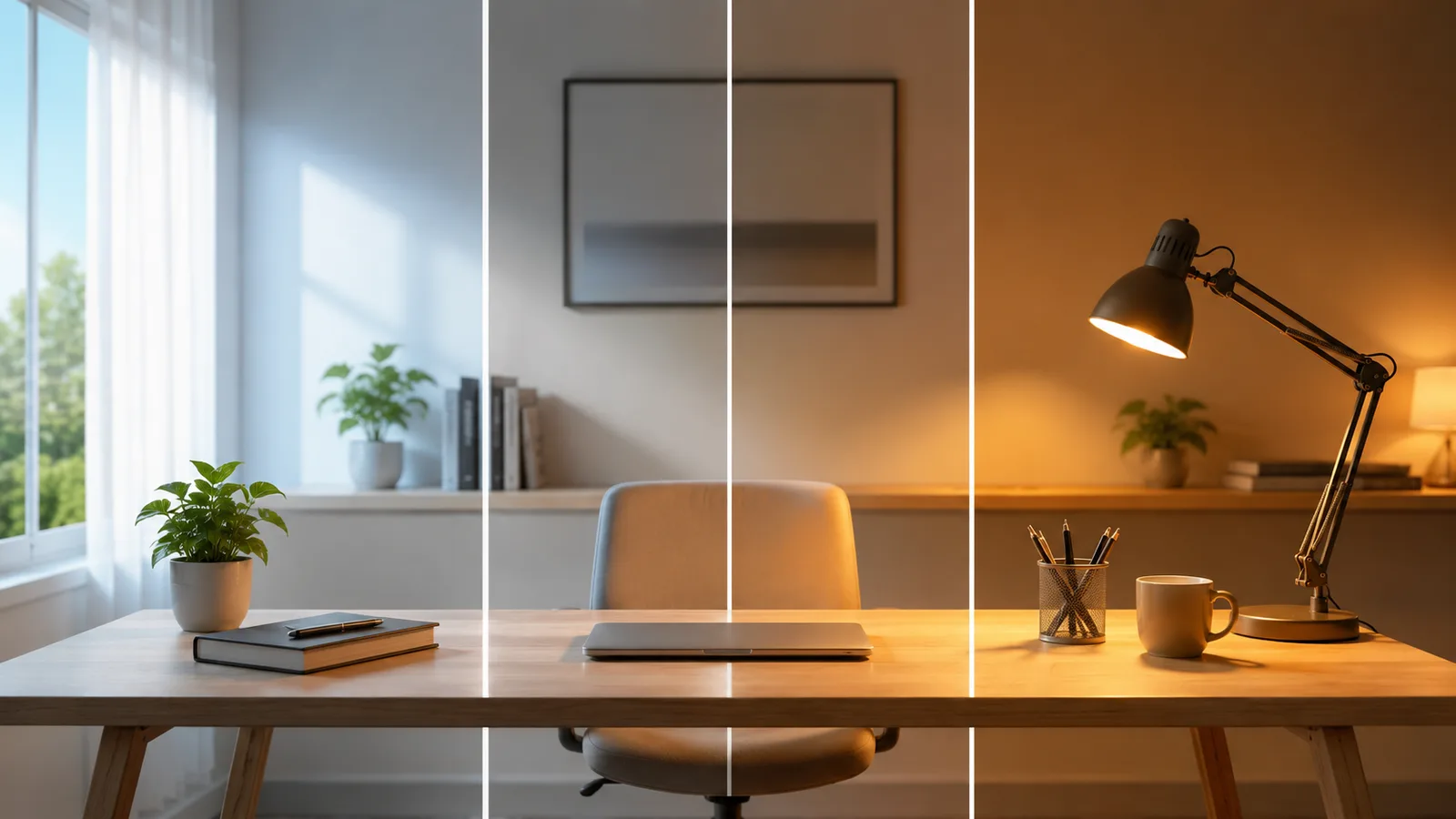
Three upgrades clear that bar. A smart plug or power strip running a "shut down the office" routine cuts the whole desk's standby load with one tap or a voice command at the end of the day. A smart bulb or light bar tuned to cooler, brighter light during work hours, around that 500 lux target, and warmer in the evening, supports focus and doubles as your video-call key light. A smart thermostat set to a schedule around your working hours stops you heating or cooling an empty house, the largest energy saving in most homes at about 8 percent of heating and cooling, per ENERGY STAR.
If you want devices from different brands to share those routines, look for ones that work across ecosystems through Matter, and if you want to build genuine automations rather than single-device timers, Home Assistant is the open-source way to do it. What you can skip: the voice assistant as a novelty, the smart everything, and any device whose only job is to be controlled by your phone. The honest verdict on a smart office is that two or three well-chosen devices do almost all the useful work.
How do you set up a home office in a small space?
In a small space, the trick is to zone one defined area and build upward rather than spread out. A corner, a wide closet, an under-stair nook, or a wall-mounted folding desk all work, and even about one square meter is enough if you light it well and keep the desktop to three things: a screen, your input devices, and one light.
A monitor arm earns its place here, because it lifts the screen off the desk and reclaims the surface underneath. A single ultrawide monitor can replace two screens without the center bezel or the second stand, which matters when depth is tight, and you want a desk around 27 to 31 inches deep so the screen still sits an arm's length away. In a room that doubles as something else, a smart plug that powers the whole setup down at the end of the day also helps it stop being an office until morning.
What this guide does not cover
This is a setup and smart-tech guide, not an interior-design or a tax guide. It doesn't rank specific desks, chairs, or monitors by model, and it deliberately avoids the design and decor angle, which other sites do well with photo galleries. Whether a home office is tax deductible depends on your country and situation, a question for a qualified professional, not a blog. For specific device picks, the linked buyer's guides go deeper than a single section can.
Sources
- OSHA, Computer Workstations eTool: Monitors (viewing distance and height)
- Mayo Clinic, Office ergonomics: Your how-to guide (chair, posture, monitor)
- U.S. Energy Information Administration, Electric Power Monthly (average residential electricity rate, early 2026)
- U.S. Department of Energy, standby and "vampire" power (standby load share and yearly cost)
- ENERGY STAR, Smart Thermostats (heating and cooling savings)
Frequently asked questions

Written by
Tapabrata Biswas
Tech Researcher
I test AI productivity tools and research home-automation gear the way most people use them. Not in a lab, but on an ordinary desk with an ordinary internet connection. The only test that matters: does it save you time?
Share the Post with Your Besties
Get the plain-English tech brief
One email a week on AI tools and smart-home tech. No jargon, no hype.