
ChatGPT for PowerPoint: 5 Ways to Build a Deck in 2026
ChatGPT can now make a PowerPoint: get a downloadable .pptx, use the official add-in, or paste its outline. The methods, real prompts, and honest limits.

Researched with AI assistance, reviewed and edited by Tapabrata Biswas.
In this article
- 01Can ChatGPT make a PowerPoint file?
- 02Method 1: ChatGPT writes the outline, you build the deck
- 03Method 2: get a downloadable .pptx from ChatGPT
- 04Method 3: the ChatGPT for PowerPoint add-in
- 05Method 4: have ChatGPT write a VBA macro
- 06Method 5: ChatGPT plus a design tool
- 07Which method should you actually use?
- 08Where ChatGPT slides go wrong
- 09What this post does not cover
- 10Sources
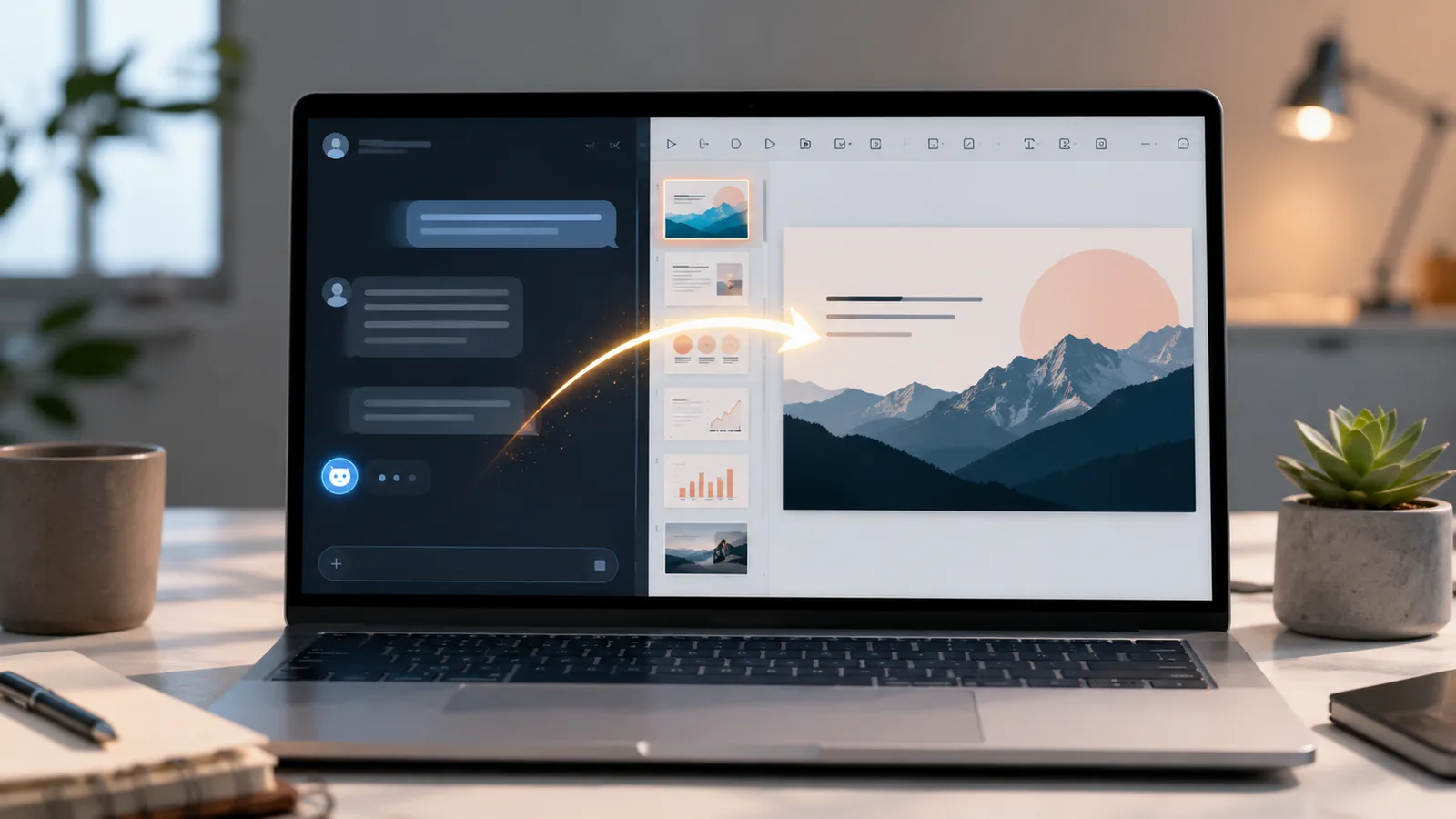
Ask ChatGPT for a presentation today and it can hand you back an actual .pptx file, not just a wall of text to copy out by hand. That's the part that changed in 2026, and it's why half the guides you'll find are already out of date, they were written when ChatGPT could only give you words on a screen.
This walks through every real way to turn ChatGPT into slides: the free outline-and-paste method, the downloadable file, the official PowerPoint add-in, a VBA macro, and pairing it with a design tool. It's a practical prompt guide, not a ranked review of add-ins, and the prompts are here to copy. One thing to get straight before you start: ChatGPT is strong on the content and structure of a deck and weak on the design, so whichever route you take, expect a plain deck you'll style afterward.
Can ChatGPT make a PowerPoint file?
Yes. As of 2026, ChatGPT can produce a downloadable, editable PowerPoint in three native ways, plus the classic route of writing the content for you to drop into slides yourself. The three file routes are direct file creation on the paid plans, the Python code tool building a .pptx with the python-pptx library, and the ChatGPT for PowerPoint add-in that works inside the app. The models behind this keep moving fast, OpenAI retired GPT-5.2 in ChatGPT on 12 June 2026 per its model release notes, so treat any exact model name or plan detail as current to August 2026 and confirm it on OpenAI's page.
The one honest caveat runs through all of them. ChatGPT gives you a deck that reads well and is organized sensibly, then leaves the visuals to you. A generated file lands with plain formatting and no images. That's not a flaw to fight, it's the division of labor: let ChatGPT do the words and the shape, and do the design pass yourself or with a proper design tool.
| Method | What you get | Plan needed | Best for |
|---|---|---|---|
| Outline to paste | Slide titles, bullets, and speaker notes as text (you build the deck) | Free | The reliable starting point for anyone |
| Downloadable .pptx (file creation) | An editable PowerPoint file ChatGPT builds for you | Paid (Plus and up) | A first-draft file without leaving ChatGPT |
| Code tool (python-pptx) | A plain .pptx through a download link | Plus or Pro (Free is limited) | A quick file you plan to restyle anyway |
| ChatGPT for PowerPoint add-in | Slides built and edited inside PowerPoint, still editable | Listed across Free, Go, Plus, Pro | Staying inside PowerPoint |
| VBA macro | Code that builds the slides when you run it | Free (any plan) | Repeatable decks, or no code-tool access |
| ChatGPT plus a design tool | A polished, designed deck | Free to paid, per tool | When the deck has to look good |
What you get
- Outline to paste
- Slide titles, bullets, and speaker notes as text (you build the deck)
- Downloadable .pptx (file creation)
- An editable PowerPoint file ChatGPT builds for you
- Code tool (python-pptx)
- A plain .pptx through a download link
- ChatGPT for PowerPoint add-in
- Slides built and edited inside PowerPoint, still editable
- VBA macro
- Code that builds the slides when you run it
- ChatGPT plus a design tool
- A polished, designed deck
Plan needed
- Outline to paste
- Free
- Downloadable .pptx (file creation)
- Paid (Plus and up)
- Code tool (python-pptx)
- Plus or Pro (Free is limited)
- ChatGPT for PowerPoint add-in
- Listed across Free, Go, Plus, Pro
- VBA macro
- Free (any plan)
- ChatGPT plus a design tool
- Free to paid, per tool
Best for
- Outline to paste
- The reliable starting point for anyone
- Downloadable .pptx (file creation)
- A first-draft file without leaving ChatGPT
- Code tool (python-pptx)
- A quick file you plan to restyle anyway
- ChatGPT for PowerPoint add-in
- Staying inside PowerPoint
- VBA macro
- Repeatable decks, or no code-tool access
- ChatGPT plus a design tool
- When the deck has to look good
Start with method one. It's free, it works on any plan, and it's the foundation the fancier methods build on.
Method 1: ChatGPT writes the outline, you build the deck
The outline method means asking ChatGPT for slide-by-slide content as text, then pasting it into PowerPoint. It needs no add-in, no payment, and no code tool, and it's still how most people actually do this. The whole trick is in how you describe the deck you want.
A vague request gets a generic skeleton with filler bullets and maybe an invented statistic or two:
Make me a PowerPoint about cloud costs.
Give it the real parameters, and you get an outline you can paste straight in. Name the audience, the slide count, the talk length, the per-slide structure, and tell it plainly not to invent numbers:
Act as a presentation strategist. Create a 10-slide deck outline for a 15-minute talk titled 'Cutting Cloud Costs Without Slowing Engineering', aimed at non-technical finance leaders. For each slide give me a slide title, 3 to 4 concise bullet points (max 12 words each, no full sentences), and a 40 to 60 word speaker note written the way I would actually say it out loud. Include an opening hook slide and a single clear call-to-action slide at the end. Keep claims general unless I give you data, and do not invent statistics. Format it as an indented outline so I can paste it straight into PowerPoint's Outline view.
That indented format matters. In PowerPoint, open View, then Outline, and paste: a Tab-indented outline drops in as slide titles and bullets in one shot, rather than you building each slide by hand. Google Slides has no outline import, so there you paste slide by slide. Either way, apply a Design theme afterward to make it look like something.
This is really just prompting well, pointed at slides. The general skill is in writing a clear prompt, and the same describe-then-verify habit runs through ChatGPT for Excel, where a vague request gets you a formula built for a spreadsheet that isn't yours.
Method 2: get a downloadable .pptx from ChatGPT
ChatGPT produces a downloadable PowerPoint file in two different ways, and it's worth knowing which is which. Both give you a real .pptx. Both give you plain formatting.
The first is native file creation. On its paid plans, ChatGPT can create and edit documents, spreadsheets, and presentations directly and hand back an editable file, including matching an existing master deck or template you provide. You ask for the presentation, it builds one, and you download it. OpenAI lists this file creation on its paid and work tiers, so check the current plan floor before you rely on it.
The second is the code tool, and it's been around longer. In Advanced Data Analysis, ChatGPT writes and runs Python with the python-pptx library, builds a .pptx in its sandbox, and gives you a download link, with no Python installed on your machine. This prompt drives it:
Use your Python code tool with the python-pptx library to generate a downloadable .pptx file. Build an 8-slide deck titled 'Q3 Onboarding Playbook'. Slide 1 is a title slide with the subtitle 'Prepared for the People Ops team'. Slides 2 to 7 each have a heading and 3 to 5 bullets from the content I paste below. Slide 8 is a 'Next steps' slide with 3 bullets. Use a 16:9 layout, a consistent dark-blue title colour, and 24pt body text, and copy each slide's bullets into the speaker-notes area too. When it is done, give me the download link right away and tell me the filename. [paste your slide content here]
Two things to know before you rely on this. The output is bare: python-pptx sets titles, bullets, fonts, colours, and positions, and can build a simple chart from data you give it, but there's no theme and no imagery. And the sandbox session expires, which kills the download link, so grab the file the moment it appears. If the link has gone dead by the time you click, ask ChatGPT to regenerate it. Free access to the code tool is limited and inconsistent in 2026, so this route is dependable on Plus or Pro, less so on Free.
Method 3: the ChatGPT for PowerPoint add-in
The ChatGPT for PowerPoint add-in is a sidebar that runs inside PowerPoint itself, so ChatGPT builds and edits slides in your live deck without any copy-paste or download step. It can draft a first version from source material, add or revise slides in a deck you already have, answer questions about the deck's structure, and polish it for a particular audience, all while keeping the slides fully editable.
You add it from the Home tab, then Add-ins, then search for ChatGPT, add it, and sign in with your ChatGPT account. OpenAI lists it broadly, across Free, Go, Plus, and Pro, as well as Business, Enterprise, and education plans, with usage limits that vary by tier. Availability and limits shift often, so confirm on OpenAI's page before you count on a specific plan.
This is the cleanest option if your work lives in PowerPoint and you want the slides to stay native and editable rather than arriving as a flat generated file. For a one-off deck the free outline method is quicker to reach for, but when you're revising a real presentation and want the AI to see and edit the whole thing in place, the add-in earns its spot.
Method 4: have ChatGPT write a VBA macro
A VBA macro is a small program ChatGPT writes that builds your slides when you run it inside PowerPoint. It's the power-user route: useful when you want repeatable, parameterized decks and either don't have the code tool or would rather keep everything inside PowerPoint. You describe the deck, it writes the code, you paste and run.
Write a single PowerPoint VBA macro I can paste into a module (Alt+F11) and run to build a 6-slide deck. Use the active presentation, set the slide size to 16:9, and for each slide use the built-in 'Title and Content' layout with a title and a bulleted text box. Pull the slide content from an array I can edit at the top of the macro. Add error handling that shows a message box with the slide number if a layout is missing, comment each block, tell me exactly where to paste it and how to run it, and remind me to save as .pptm.
To run it: enable the Developer tab (File, Options, Customize Ribbon, tick Developer), press Alt and F11 to open the VBA editor, choose Insert, then Module, paste the code, and run it with F5. Save the result as a .pptm file to keep the macro. Be honest with yourself about the risks here. Macros run unsandboxed with access to your files, so only run code you understand, and generated VBA often references the wrong layout index on the first try and errors out, at which point you paste the error back to ChatGPT and it fixes it. Locked-down work laptops block macros entirely, which is reason enough for most people to prefer the code tool or the add-in.
Method 5: ChatGPT plus a design tool
The fifth method is to let ChatGPT write the content and hand a dedicated tool the job of making it look good. This is the answer when the deck has to be presentable, because it plays to each side's strength: ChatGPT's structure and words, the tool's templates and layout.
You can take ChatGPT's outline into a dedicated AI presentation maker that turns text into a designed deck, or use a tool like Gamma that generates the visuals from a prompt. One tradeoff to know: web-native tools like Gamma produce the best-looking slides but the shakiest PowerPoint export, fonts and layouts often shift when you download the .pptx. Tools that build natively inside PowerPoint or Google Slides keep that fidelity better. If perfect .pptx formatting matters, favour the native builders over the web-first ones.
Microsoft 365 Copilot sits in this category too, but it's a different product, not ChatGPT. Copilot lives inside PowerPoint, builds a fully designed deck from a prompt or a Word document using your company template, and applies real design in one step. It needs a paid Microsoft 365 Copilot licence on top of an existing Microsoft 365 subscription, so it's the natural pick if you already pay for it and not worth switching software for if you don't.
Which method should you actually use?
Match the method to the job, not to whichever guide ranked first. For a quick deck you'll polish yourself, the free outline method plus a PowerPoint theme is the fastest honest route. For a file without leaving ChatGPT, use native file creation on a paid plan, or the code tool if you're comfortable it'll be plain. To stay inside PowerPoint with editable slides, install the add-in. For repeatable decks, a VBA macro. And when the deck genuinely has to look good in front of people, run ChatGPT's content through a design tool. Most people end up using two: ChatGPT for the words, something else for the polish.
Where ChatGPT slides go wrong
ChatGPT predicts text, it does not check facts, so every deck it writes is a draft until you verify it. This is the single most important thing to hold onto, because the output sounds equally confident whether it's right or invented.
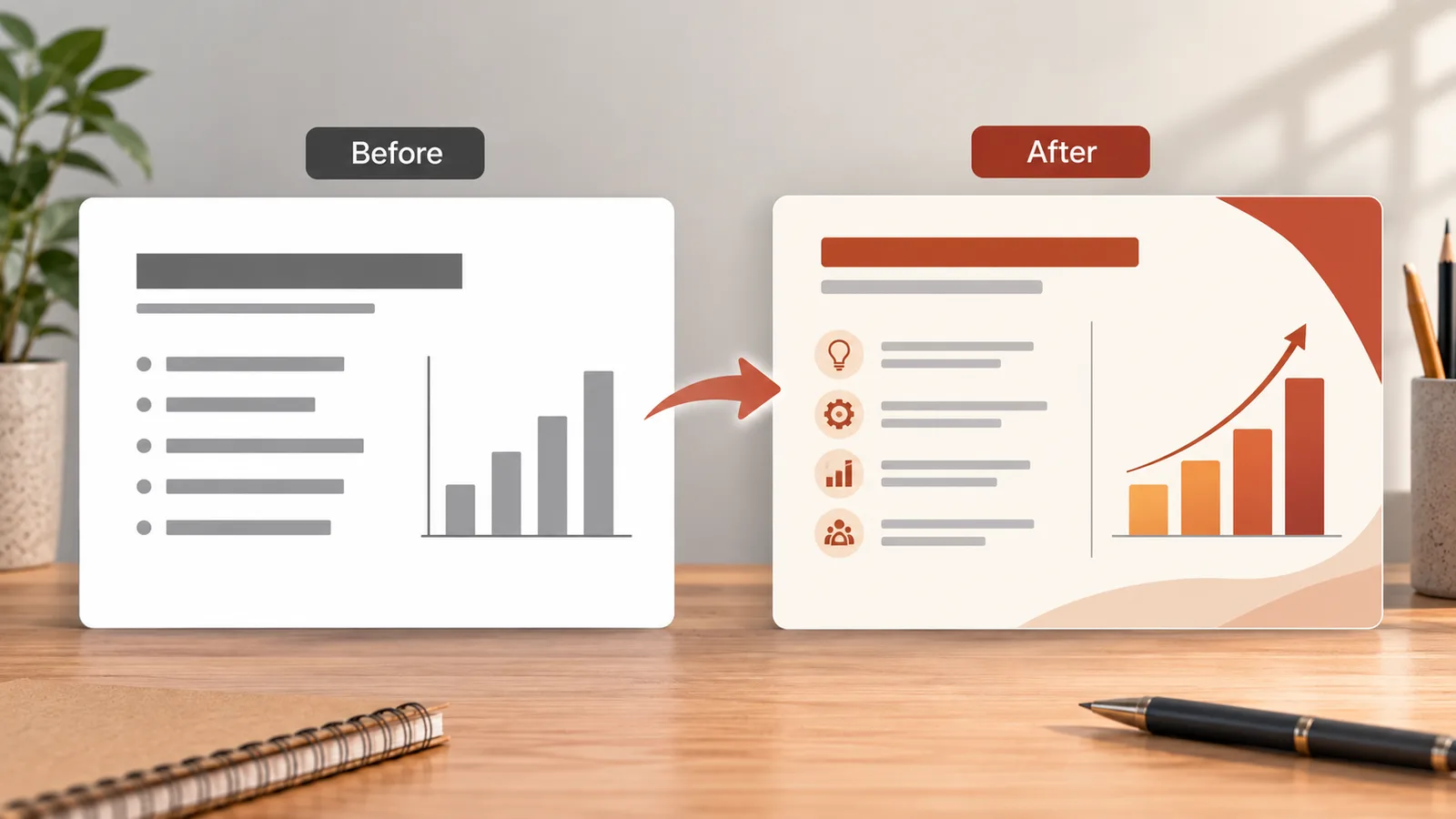
The content is ChatGPT's job. The look is still yours.
Five failure modes cause most of the trouble. Fabricated facts come first: any statistic, quote, date, or citation it adds unprompted may be made up, which is why the good prompts above tell it not to invent numbers. Plain design is next, a generated file has no theme or images until you add them. Speaker notes need a read-through, since they drift from the bullets or turn generic. Images barely work through code, python-pptx only places pictures you supply, so most decks still need you to add visuals by hand. And the code tool's download link dies when the session times out, so save the file immediately. None of these are dealbreakers. They're just the reason a generated deck is a strong first draft, not a finished one.
Cleaning a bloated slide is itself a good use of ChatGPT. Paste the overloaded text and let it cut:
Here is the text from one overcrowded slide. Rewrite it as a clean slide: a title of 5 words or fewer and no more than 4 bullets, each under 10 words, in parallel grammar and action-first. Move anything that does not fit into a 50-word speaker note instead of onto the slide. Keep the meaning exact and do not add facts. [paste slide text]
What this post does not cover
This is a practical guide to making PowerPoint slides with ChatGPT: the outline method, the downloadable file, the add-in, VBA, and pairing it with a design tool. It doesn't rank presentation tools as products, and it doesn't teach slide design or public speaking beyond the deck-building workflow.
Enterprise governance of AI in presentations, live data connections, and deep custom template automation are out of scope. Plan availability, add-in features, model names, and third-party pricing all change quickly, so treat the specifics here as current to August 2026 and confirm anything that matters on the official pages before you rely on it.
Sources
- ChatGPT for PowerPoint, OpenAI Help Center (the add-in, install steps, and plan availability)
- Creating and editing documents, spreadsheets, and presentations with ChatGPT, OpenAI Help Center (native file creation)
- ChatGPT model release notes, OpenAI Help Center (current models and retirement dates)
- python-pptx documentation, the library ChatGPT's code tool uses to build a .pptx
- Get started with Copilot in PowerPoint, Microsoft Support (the Copilot contrast and licence requirement)
Frequently asked questions

Written by
Tapabrata Biswas
Tech Researcher
I test AI productivity tools and research home-automation gear the way most people use them. Not in a lab, but on an ordinary desk with an ordinary internet connection. The only test that matters: does it save you time?
Share the Post with Your Besties
Get the plain-English tech brief
One email a week on AI tools and smart-home tech. No jargon, no hype.