

How to Build a Second Brain With ChatGPT (Honest 2026 Guide)
Build a second brain with ChatGPT using Projects, Memory and Tasks. An honest no-code 2026 guide: what works, what doesn't, and how to keep it private.

Researched with AI assistance, reviewed and edited by Tapabrata Biswas.
In this article
300,000 words is roughly how much ChatGPT can hold in a single conversation, and it forgets every one of them the moment you open a new chat. That gap, between how much it can read and how little it keeps, is the whole reason a "second brain" matters. The idea is older than AI: your head is good at having ideas and bad at storing them, so you offload the storing to a system you trust. The interesting question for 2026 is whether ChatGPT can be that system. The honest answer is that it can run part of it very well and part of it badly, and knowing which is which saves you a lot of wasted effort.
This is a practical, no-code guide to building one. No terminal, no plugins, no Obsidian vault wired to a database. Just ChatGPT's own features, mapped to the jobs they actually do, with clear notes on where the tool stops being enough and a real notes app has to take over. You can start on the free tier to test the idea, though the version worth keeping leans on a couple of paid features covered below.
What a second brain actually is
A second brain is an external system that holds what you learn so you can find and reuse it later, instead of trying to keep it all in your head. The clearest version comes from Tiago Forte, whose book Building a Second Brain has been read by more than 500,000 people and runs on a four-step loop he calls CODE: Capture, Organise, Distill, Express. You capture what resonates, organise it so you can find it, distill it down to the useful core, and express it by making something with it.
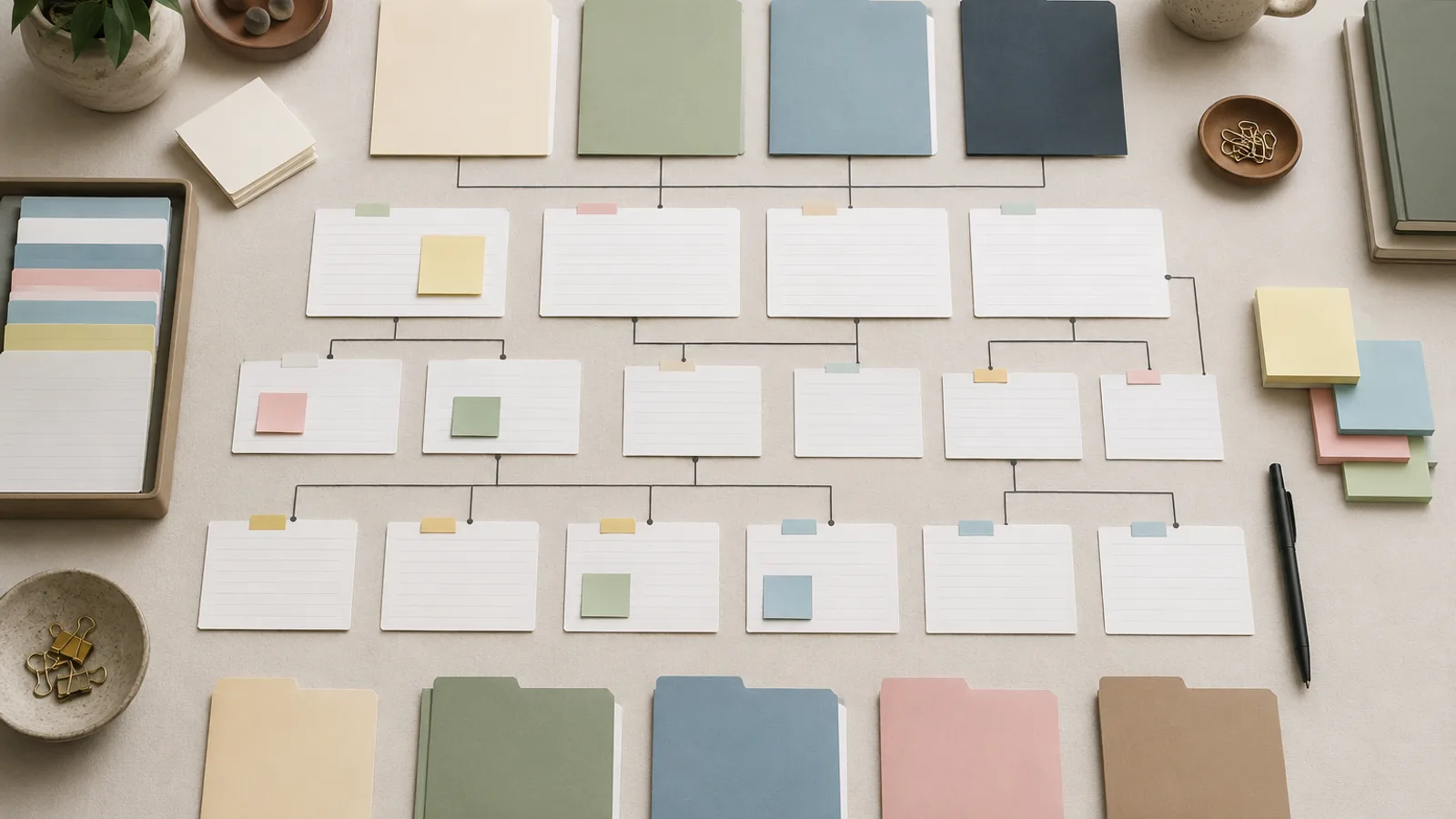
The organising step uses a second idea, PARA, which sorts everything into four buckets: Projects you're actively working on, Areas you're responsible for over time, Resources you might want later, and Archives for anything finished. The trick that makes PARA work is sorting by how actionable something is, not by topic. A note about pricing strategy lives with the project you'll use it on, not in a folder called "marketing." Hold on to those two ideas, capture-to-express and sort-by-actionability, because the rest of this guide is about getting ChatGPT to run them.
ChatGPT's four features, and the job each one does
Most second-brain guides tell you to open Projects and start dumping files. That works until it doesn't, because ChatGPT has four different memory-like features and they are not interchangeable. Using the wrong one for a job is how people end up frustrated.
Memory is for who you are. It quietly saves preferences and facts across chats, like your job, your tone, the fact that you write in British English. It's helpful, but it is not your knowledge base. OpenAI's own guidance says not to rely on it to store exact templates or large blocks of text, and it decides what to save on its own, so it often keeps trivia and misses the thing you cared about.
Custom instructions are your defaults: a short, stable profile that tells ChatGPT how to respond every time. Set it once with how you like answers structured.
Projects are the real engine of a ChatGPT second brain. A Project is a persistent workspace: a set of chats that share the same uploaded files and the same instructions, so the context carries across every conversation inside it. Project instructions even override your global ones. This is where your knowledge actually lives.
Tasks handle upkeep. A Task is a prompt ChatGPT runs on a schedule, which is what keeps a second brain alive rather than abandoned (more on the weekly review later).
Memory for identity, custom instructions for defaults, Projects for knowledge, Tasks for maintenance. Get that mapping right and the build is straightforward.
Build it, step by step
Step 1: Set up a capture habit
Capture fails when it has friction. Pick one inbox you already open all day, a notes app, an email-to-self, a single running document, and send everything there without sorting it. The sorting comes later. The goal at this stage is that no idea dies because you had nowhere to put it in the moment. ChatGPT isn't really the capture tool here; your phone's notes app is faster. If you think out loud, voice notes work too, and ChatGPT's Record mode (on the Mac app, on a paid plan) can transcribe a meeting or a spoken brain-dump straight into text you process later.
Step 2: Build the engine as a Project
This is the core move. Create a Project, name it something like "My second brain," and give it instructions that tell ChatGPT how to behave as your thinking partner. A starting template, on ChatGPT GPT-5.5:
You are my second brain. I'll give you notes, documents and half-formed ideas over time. Your job is to help me organise, connect and reuse them. Default to short, structured answers. When I add something, tell me where it fits and what it connects to. When I ask a question, draw on the files in this Project before anything else, and tell me if the answer isn't in them.
Then add your reference material to the Project: paste text, or upload the PDFs, docs and notes that matter. On Plus you can keep around 25 files per Project, which is plenty for an active knowledge base. Everything in that Project now shares this context.
Step 3: Organise with PARA
Don't make one giant Project for your whole life; it turns into the same blur you were trying to escape. Use PARA. A Project in ChatGPT maps neatly to a Project or Area in PARA: one for a piece of work with a deadline, one for an ongoing responsibility like "marketing" or "health." Keep Resources and Archives as files you add when they're relevant. To sort a messy pile, you can hand it over:
Here are my notes and tasks from this week: [paste]. Sort them using PARA: active Projects with a deadline, ongoing Areas, Resources for later, and Archive for anything finished. Flag anything that doesn't clearly fit so I can decide.
Step 4: Distill, and be ruthless about it
This is the step that separates a second brain from a junk drawer. The most common way these systems fail is that you capture everything, feed it all in, and get back noise instead of insight. The fix is selectivity. Distill each thing down to why it mattered before it goes in:
Read this article and pull out only the three ideas worth remembering, in one line each, plus how each one applies to my work. Skip the summary, I don't need the whole thing recapped: [paste].
A second brain you can actually think with is small and sharp, not complete.
Step 5: Retrieve and express
The payoff is asking your brain a question and getting an answer shaped by everything you've fed it. Because the Project holds your context, retrieval feels less like search and more like asking a colleague who was in every meeting:
Based on the notes and documents in this Project, what have I already figured out about [topic], and where are the gaps I haven't thought through yet?
To keep the whole thing from going stale, set a Task to run a weekly review on a schedule:
Every Friday at 4pm, ask me what I added this week, then help me distill the three most useful things into one-line notes and tell me which current project each one helps.
Where ChatGPT alone breaks, and the honest fix
Here's the part the 30-minute guides skip. ChatGPT is a strong thinking brain and a weak filing cabinet, and a second brain needs both.
The cracks show up in three places. Memory saves loose snippets with no real structure, so it can't be the durable index of everything you know. A conversation can hold a lot, but it resets to zero when you start a new chat, and Projects soften that without fully solving it. And you don't own any of it: there's no folder on your computer, no clean export of your whole knowledge base, no guarantee a feature won't change next year.

The fix isn't to abandon ChatGPT; it's to give it a partner. Keep a real notes app as the store you own, a place your knowledge lives in plain folders you control, and let ChatGPT be the brain that reads, connects and synthesises what's in there. Notion is the friendly, structured option, and our Notion AI review weighs up whether its built-in AI is worth the upgrade; Obsidian suits people who want plain files on their own machine. Even a tidy set of Google Docs works. On a paid plan you can wire the two halves together directly: ChatGPT's Google Drive and OneDrive connectors link a folder to a Project, so it reads your current files live instead of making you re-upload them each session. And if you'd rather not assemble this yourself, purpose-built tools do the capture-and-retrieve job in one place: NotebookLM is free and answers only from documents you give it, while Mem and Reflect are paid options built for the same purpose. The store remembers; ChatGPT thinks. That division of labour is the honest version of an AI second brain in 2026, and it's more durable than trusting one chatbot to be the whole system.
One more practical note: the version worth building is mostly behind ChatGPT Plus at $20 a month, since Projects and full Memory are paid features as of June 2026. The free tier, capped at roughly three file uploads a day, is fine for testing the workflow but too thin to run it for real.
Keep it private: what not to feed it
A second brain holds your most personal thinking, which makes privacy part of the build, not an afterthought. On the consumer tiers, OpenAI may use your inputs to improve its models unless you opt out, so turn that off first: go to Settings, then Data Controls, and switch off model training. Sensitive information now makes up a large and rising share of what people paste into chatbots, and once it's in, you can't fully take it back.
So draw a line. Keep confidential work documents, financial details, passwords, and other people's personal information out of your second brain entirely. Treat anything you type as something that could, in the wrong circumstances, be seen. If you genuinely need a no-training guarantee for work material, that's what ChatGPT Team and Enterprise are for. None of this means the tool is unsafe to use; it means a second brain is worth being deliberate about.
What this post does not cover
This is a guide to building a personal knowledge system with ChatGPT's own features, not a tutorial on advanced setups that wire AI into Obsidian or a database through code, which need technical skills most readers don't want to learn. It also isn't a review of dedicated note apps. Feature availability and pricing change often, so check OpenAI's pages for the current state before you rely on a detail. For the day-to-day prompts that pair well with this system, see our prompts for productivity; to get sharper instructions out of any of the prompts above, our guide to writing prompts helps, and the best AI tools guide covers the wider toolkit.
Sources
Frequently asked questions

Written by
Tapabrata Biswas
Tech Researcher
I test AI productivity tools and research home-automation gear the way most people use them. Not in a lab, but on an ordinary desk with an ordinary internet connection. The only test that matters: does it save you time?
Share the Post with Your Besties
Get the plain-English tech brief
One email a week on AI tools and smart-home tech. No jargon, no hype.