
Canva AI Presentation Maker: A Hands-On Review (Is It Actually Free?) 2026
A hands-on Canva AI presentation maker review: is it really free, how the design compares to Gamma, the export truth, real pricing, and who should use it.

Researched with AI assistance, reviewed and edited by Tapabrata Biswas.
In this article
- 01What is Canva's AI presentation maker, and is it free?
- 02Testing it: generating a deck
- 03What Canva does well
- 04Where Canva falls short
- 05Is Canva's AI presentation maker really free?
- 06Canva pricing: Free vs Pro
- 07Canva vs Gamma (and Presentations.ai)
- 08Who should use Canva's AI presentation maker?
- 09What this review does not cover
- 10Sources
Canva is the tool most people already have open, so its AI presentation maker starts with an advantage: you do not have to learn a new app. The question this review answers, after actually using it, is whether the AI is any good, whether it is really free, and how it compares to the AI-native tools like Gamma. We tested it hands-on.
Short version: it is the best-looking free option we have tried, it is genuinely free with no card, and it exports cleanly, which is more than some rivals manage. The catches are about the AI itself rather than the price, so this review spends its time there and on the honest comparison with Gamma.
A note on how this was tested: this is based on hands-on use of Canva's free plan in July 2026, along with its current published pricing and independent reviews. We tried it ourselves, and there is no commission on anything here.
What is Canva's AI presentation maker, and is it free?
Canva's AI presentation maker, part of its Magic Design and Canva AI features, generates a slide deck from a text prompt inside Canva, then hands it to Canva's full drag-and-drop editor to refine. It is not a separate app; it is AI bolted onto the world's most-used design tool.
Is it free? Yes, genuinely. We signed in with a Google account, were never asked for a credit card, and generated presentations on the free plan with no visible credit cap. That already sets it apart from Gamma, whose free tier is 400 one-time credits, and from Presentations.ai, whose free plan cannot export at all. A seven-day Pro trial is offered, but you do not need it to generate a deck. If "free" is the point, Canva passes the test cleanly.
Testing it: generating a deck
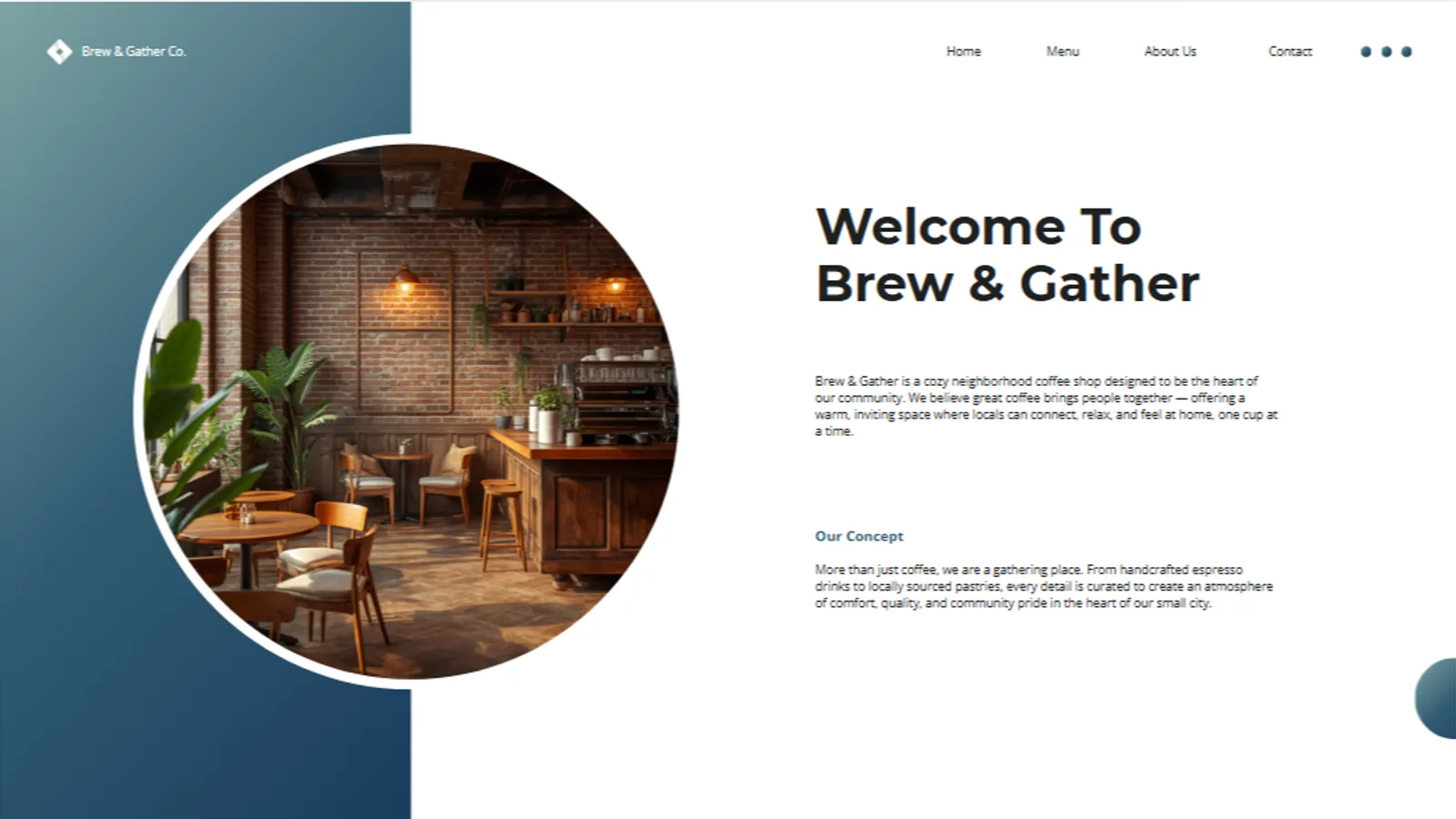
Getting a deck took about one to two minutes. We used the same prompt we gave Gamma and Presentations.ai, a pitch deck for a neighborhood coffee shop, so the comparison would be fair, and Canva turned it into a full presentation without asking for a card.
The standout was the design. Where Gamma and Presentations.ai produced fairly generic layouts that needed a theme change to look good, Canva's first draft arrived looking more finished, with stronger typography and image choices, because it draws on Canva's enormous template and asset library rather than generating a look from scratch. Editing afterward was the easiest of the three: every element is fully editable in the drag-and-drop editor, and you can add text or images with the free "Ask Canva" AI assistant. For sheer out-of-the-box polish, Canva was ahead.
Getting there is straightforward, which matters if you plan to do it often: from the Canva home screen you start a presentation, open Magic Design or the Canva AI button, type your prompt, and choose from the layouts it returns. One practical lesson from testing is worth passing on. Because the AI writes fairly generic copy, the best workflow is to treat the generated deck as a finished-looking shell and then rewrite the words, either with the free "Ask Canva" assistant or by hand, rather than presenting the first draft as it comes. In our test the design was ready well before the content was.
What Canva does well
The strengths are what you would expect from a design tool that added AI, and they are real.
Design quality is the headline: the generated deck looked the most professional of the free tools, and Canva's million-plus templates and huge asset library mean you always have a strong starting point and endless ways to adjust it. Editing control is total, unlike the more locked-in AI-native tools. The free "Ask Canva" assistant adds AI text and images without paying. And export is a quiet superpower, covered below, that several rivals get wrong. If you already use Canva for social posts or graphics, generating a deck in the same place, with the same brand look, removes a lot of friction.
Where Canva falls short
The weaknesses are about the AI, not the price, and they are worth knowing before you rely on it.
The AI content can be thinner and less structured than Gamma's. Independent reviews note a short prompt limit that gives the AI little context, so while the slides look good, the words on them often need real work, and Canva is less "AI-native" at organising an argument than a tool built only for that. Your brand kit does not automatically apply to AI generations, so brand-strict teams end up reapplying colours and fonts after each generate, which is a Pro-tier annoyance. There is no native Google Slides export (you would hand off a PDF or images instead). SVG export is Pro-only. And Canva is a large, do-everything tool, which can feel like more than a quick deck needs. The output is also better suited to marketing and visual decks than to formal, conservative corporate or investor presentations.
Is Canva's AI presentation maker really free?
Yes, and more completely than most rivals, but it helps to know exactly where the free line sits. This is the question a lot of people actually search, so here is the precise answer from testing.
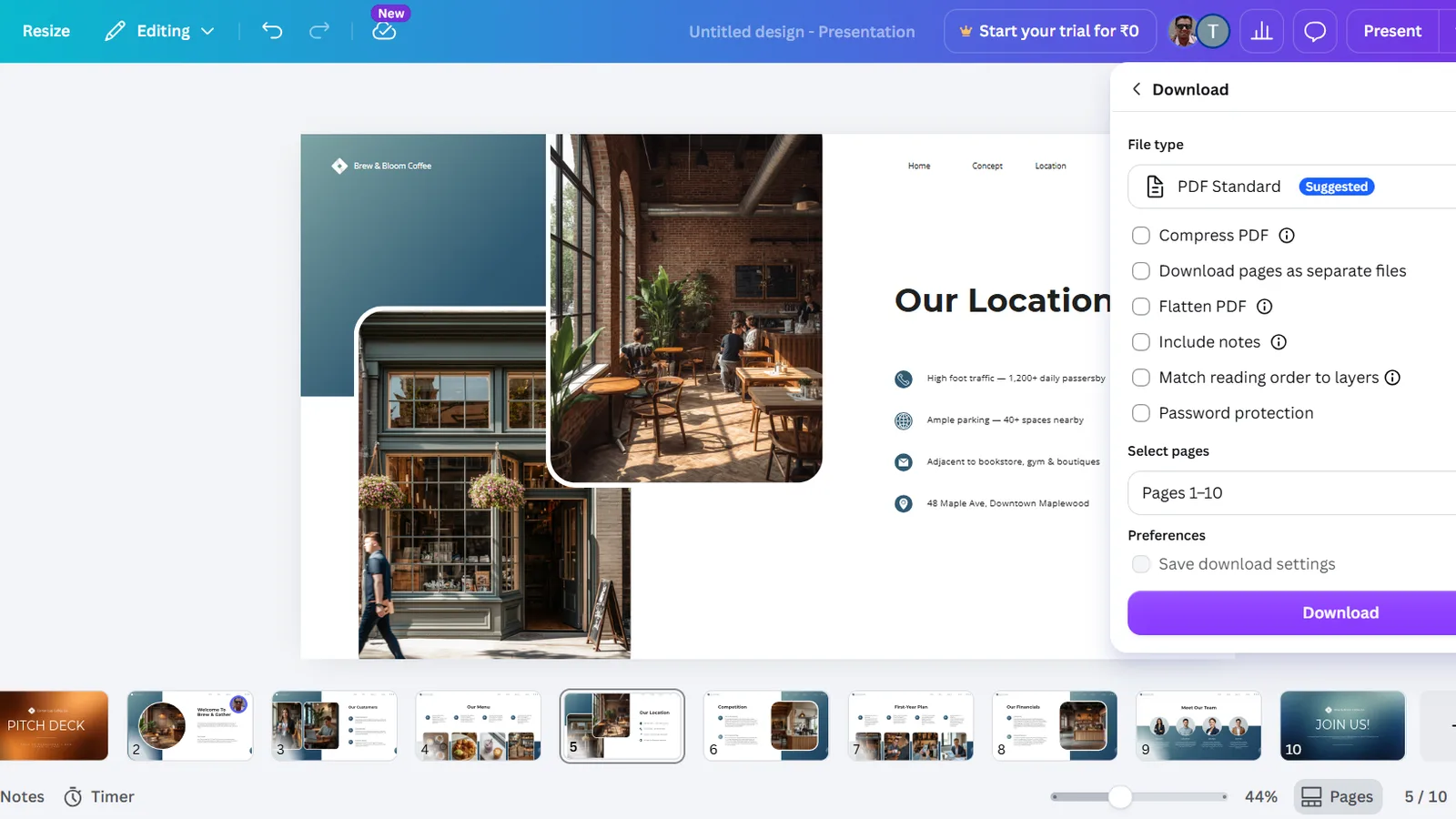
On the free plan, with no card, you can generate presentations, edit them fully, use the "Ask Canva" AI assistant, and download the result as a PDF or a PowerPoint file with the design intact and no watermark. What sits behind Canva Pro is not the core AI presentation maker but the extras: automatic brand-kit application, SVG export, custom "personalise your link" sharing, premium templates and stock assets, and higher limits on Canva's other Magic AI features. So the honest summary is that the presentation maker itself is free and usable end to end, while Pro is about brand control, premium assets, and polish.
Canva pricing: Free vs Pro
Here is what you actually get on each plan for AI presentations, in USD as of July 2026.
| Plan | Price (USD) | AI presentations | Free export | Best for |
|---|---|---|---|---|
| Free | $0, no card | Generate decks, no hard cap seen in testing | Yes, PDF and PowerPoint, no watermark | Anyone wanting free, good-looking decks |
| Pro | About $15/mo ($120/yr) | More Magic AI, and your brand kit applies | Yes, plus SVG and custom links | Teams and brand-consistent work |
Price (USD)
- Free
- $0, no card
- Pro
- About $15/mo ($120/yr)
AI presentations
- Free
- Generate decks, no hard cap seen in testing
- Pro
- More Magic AI, and your brand kit applies
Free export
- Free
- Yes, PDF and PowerPoint, no watermark
- Pro
- Yes, plus SVG and custom links
Best for
- Free
- Anyone wanting free, good-looking decks
- Pro
- Teams and brand-consistent work
For most individuals the free plan is genuinely enough to generate, edit, and export a good-looking deck. Canva Pro at about $15 a month earns its price only if you need brand-kit automation, the full premium asset library, or you are producing a lot of branded content across formats, not just the occasional presentation.
Canva vs Gamma (and Presentations.ai)
This is the comparison most people weighing Canva actually want, and since we tested all three hands-on, it is a like-for-like read. Each wins at something different.
Canva wins on design and export: better-looking first drafts, total editing control, and clean PDF and PowerPoint downloads that work everywhere. Gamma wins on being AI-native: it builds a more complete, better-structured deck from a single prompt, faster and with less manual work, and its web-link sharing is slick, though its free exports carry a badge and can break in PowerPoint. Presentations.ai wins on depth for business decks with its research-first questioning, but it cannot export on the free plan at all. In plain terms: pick Canva if you value design and reliable free export and like to tweak, pick Gamma if you want the fastest one-click AI deck, and pick Presentations.ai if you need a research-driven business deck and will pay to export. For the full picture, see our hands-on Gamma review and the wider best free AI presentation makers roundup.
Who should use Canva's AI presentation maker?
Match it to what you need. Canva fits a clear kind of user very well and frustrates another.
Use it if you want free, good-looking, fully editable decks, you value design and a huge asset library, you need reliable PDF or PowerPoint export at no cost, or you already live in Canva for other content. Skip it, or pair it with a more AI-native tool, if you want a one-click generator that writes and structures the whole deck for you, if you make formal corporate or investor decks with a conservative aesthetic, or if you specifically need native Google Slides output. In those cases the AI content will need more editing than the design will. For where Canva sits among AI tools more broadly, our roundup of the best AI tools covers the wider field.
What this review does not cover
This is a hands-on review of Canva's AI presentation maker on the free plan, not a full review of Canva Pro, Teams, its Brand Kit, or its many non-presentation features. For how it sits against other tools, see the reviews and roundup linked above. Pricing, AI limits, and features change quickly, and the content-depth and brand-kit notes draw on independent reviews alongside our own testing, so treat every figure as accurate to July 2026 and check the official page before you rely on it.
Sources
- Canva Magic Design and Canva pricing (features and plan limits, tested)
- aiworthit, Canva AI review (2026) and buildfastwithai, Canva Magic Design review (independent pros and cons)
- NextDocs, Gamma vs Canva Magic Design (2026) (design and export comparison)
Frequently asked questions

Written by
Tapabrata Biswas
Tech Researcher
I test AI productivity tools and research home-automation gear the way most people use them. Not in a lab, but on an ordinary desk with an ordinary internet connection. The only test that matters: does it save you time?
Share the Post with Your Besties
Get the plain-English tech brief
One email a week on AI tools and smart-home tech. No jargon, no hype.