
ChatGPT Canvas: What It Is, How to Use It, and When to Skip It (2026)
What ChatGPT Canvas is, how to open it, every writing and coding shortcut, which presets actually work, and when to skip it and just use the chat.

Researched with AI assistance, reviewed and edited by Tapabrata Biswas.

In this article
Most of ChatGPT scrolls away. You write a draft, ask for a change, and the new version buries the old one three messages up. Canvas fixes that one annoyance: it pulls the thing you're working on into its own window so you can edit it in place, which is genuinely useful for a long document or a script, and pointless for a quick question.
This is the ChatGPT Canvas feature, part of the same set of tools as ChatGPT Agent. We'll cover what it is, every way to open it, what the writing and coding shortcuts actually do (including the ones that make your draft worse), and when you're better off closing it and just using the chat.
What is ChatGPT Canvas?
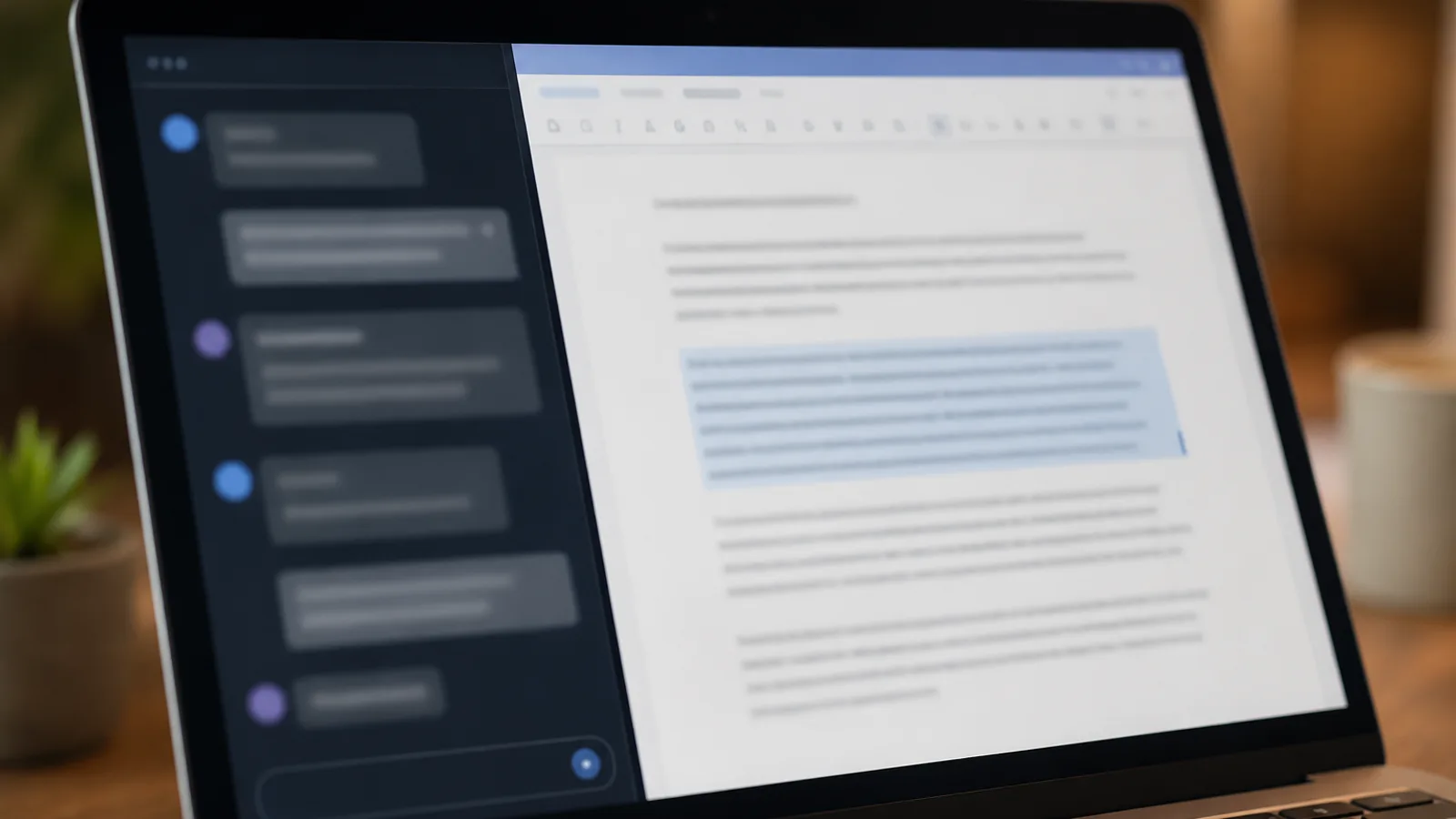
ChatGPT Canvas is an interface for working on writing and coding projects in a dedicated window instead of a scrolling chat. OpenAI introduced it in late 2024, and the layout is the whole idea: the conversation stays on the left, an editable document opens on the right, and you both work on the same piece. You can type into it directly, highlight a paragraph or a function to point at exactly what you mean, and step back through earlier versions.
The reason it exists is that chat is a bad shape for revision. In a normal thread, every edit spawns a new copy and the good version scrolls out of reach. Canvas keeps one living document in front of you, so "make the intro punchier" changes the intro you're looking at instead of printing a fresh wall of text below.
How to open (and close) canvas
You can open canvas three ways: ask for it, type a command, or let it open on its own. Say "use canvas" or "open a canvas" in your message, type /canvas in the composer, or paste in existing text and tell it to "open this in canvas."
Open a canvas and draft a 600-word blog intro about switching from spreadsheets to a real budgeting habit. Keep it plain and a little funny.
The fourth way is automatic: when ChatGPT writes something long, usually more than about ten lines, it tends to open canvas itself. That's helpful for an article and irritating for a list you wanted inline. If it keeps popping open when you don't want it, just tell ChatGPT to answer in the chat instead, and it will. Knowing you can wave it off is half of using it comfortably.
The writing tools, and which ones to trust
Canvas adds a row of writing shortcuts, and they range from genuinely useful to actively harmful, so it's worth knowing which is which. The menu covers adjusting length, changing reading level, adding a final polish, suggesting edits, and adding emojis.
Two are worth using. Adjust length slides a draft shorter or longer without you re-prompting, which is handy for hitting a word count. Reading level is the underrated one: it retargets the text anywhere from Kindergarten to Graduate School, so you can drop a dense paragraph to something a beginner follows, or lift casual notes to a formal register.
Two are hit or miss, and worth a warning. "Add final polish" often does more than polish: in hands-on use it makes sweeping cuts and quietly removes substance while tidying grammar. "Suggest edits" tends to be weaker than just highlighting the passage and telling ChatGPT what you want in your own words. The single best habit in canvas is that manual one: select the exact sentence or section, then ask for the specific change. In practice that looks like highlighting one flabby paragraph and asking for exactly what you want:
Rewrite only this highlighted paragraph to lead with the benefit to the reader, cut it to three sentences, and keep my voice.
Canvas changes just that paragraph and leaves the rest of your draft alone, which is the entire reason to work here instead of in the chat. Targeted beats the preset button almost every time.
The coding tools
For code, canvas turns into a lightweight editor with its own shortcuts: review code, add logs, add comments, fix bugs, and port between languages, including JavaScript, TypeScript, Python, Java, C++, and PHP. The standout is that you can run Python right in the browser and see the output in a console at the bottom, so you can test a snippet without leaving the page.
It's a real help for a single script or a snippet you're debugging. It is not a place to build software. The porting shortcut struggles with anything large or interdependent, the "add comments" action has been known to delete working lines while annotating, and there's no project structure, so multi-file work falls apart fast. For real development, a proper editor like VS Code or Cursor still wins, and canvas is where you draft or fix one file before you paste it back.
Real jobs canvas is good at
The people who get the most out of canvas are the ones revising the same piece over and over, not asking one-off questions. A few concrete examples show the shape.
A student pastes an essay in, drops the reading level a notch to check it still makes sense in plain language, trims it to the word limit with the length slider, then fixes the one weak paragraph without disturbing the rest. That's four edits to the same document, each visible, none of them scrolling away.
A marketer drafts a landing page, then rewrites the headline five times while the body copy sits untouched on the right, comparing versions with the back button. A support lead turns a page of rough bullet notes into a clean help article, then bumps the reading level up for a formal audience. A developer pastes a broken Python script, uses fix bugs, runs it in the built-in console to confirm the error is gone, then copies it back into their editor.
The thread through all of them is repetition on one artifact. Canvas is built for the second, third, and fourth pass, which is exactly where a plain chat thread turns into a mess.
When canvas helps, and when to skip it
Canvas earns its place on longer, iterative work and gets in the way on quick, one-shot tasks. The deciding question is whether you'll revise the output more than once. If yes, the side-by-side editor saves you real friction. If no, the extra window is just clutter.
| Reach for canvas when | Stick with the chat when |
|---|---|
| Drafting and revising a long document | You want a quick, one-shot answer |
| Rewriting a specific section repeatedly | The reply is a short list or snippet |
| Debugging or tweaking a single script | You're building a multi-file codebase |
| Retargeting tone or reading level | You're brainstorming loose ideas |
One more honest limit: canvas is a drafting surface, not a document platform. There's no real-time collaboration like Google Docs, no image or file embedding yet, and the export is basic, mostly copy and paste. If you need to build a custom writing or coding assistant you reuse, that's a job for a custom GPT, not canvas. And if you're new to ChatGPT, you don't need canvas on day one; it makes more sense once you're revising real work.
What this post does not cover
This is a plain-English guide to the ChatGPT Canvas feature, not a full manual or a promise of how it will behave on your specific task. It doesn't cover the developer API, and it isn't legal or professional advice. Canvas changes often, including which plans and platforms have it and which shortcuts exist, so confirm the current details in ChatGPT or OpenAI's help pages. For sharper results whatever tool you use, our tips on getting better answers apply inside canvas too.
Sources
Frequently asked questions

Written by
Tapabrata Biswas
Tech Researcher
I test AI productivity tools and research home-automation gear the way most people use them. Not in a lab, but on an ordinary desk with an ordinary internet connection. The only test that matters: does it save you time?
Share the Post with Your Besties
Get the plain-English tech brief
One email a week on AI tools and smart-home tech. No jargon, no hype.