
Gemini Live: What It Is, How to Use It (Voice, Camera, Screen Share), and Is It Free? (2026)
What Gemini Live is, how to use its voice, camera, and screen sharing, whether it's free, and how Google's voice assistant compares to ChatGPT Voice.

Researched with AI assistance, reviewed and edited by Tapabrata Biswas.
In this article
- 01What is Gemini Live?
- 02Is Gemini Live free, and what do you need?
- 03How to use Gemini Live, including camera and screen share
- 04Gemini Live vs the Gemini app vs Gemini for Home
- 05Gemini Live vs ChatGPT Voice Mode
- 06What it's good at, and where it frustrates
- 07Getting the most out of Gemini Live
- 08What this post does not cover
- 09Sources
Talking to your phone used to mean barking one command at Google Assistant and hoping. Gemini Live is a different thing: a real back-and-forth conversation you can interrupt, redirect, and even show things to with your camera. It's Google's voice assistant grown up, it's free, and it's on the iPhone now too, not just Android.
A quick word on the name, because it gets crossed. This is Google's Gemini Live, the AI voice assistant in the Gemini app. It's the immersive voice mode, distinct from typing into the Gemini app and from Gemini for Home on your Nest speakers. If you use OpenAI's tool instead, the direct equivalent is ChatGPT Voice Mode, and we'll compare the two below.
What is Gemini Live?
Gemini Live is Google's real-time voice feature in the Gemini app that lets you hold a natural spoken conversation with Gemini instead of typing. You start it by tapping the Live icon, then just talk. You can cut in mid-answer, change the subject, or drop back to typing, and it all stays in one continuous thread with your context intact.
It does more than talk. As you speak, Gemini Live surfaces visual cards, maps, weather, photos, right when they're useful, and it plugs into your Google apps so it can act hands-free: check your Calendar, add to Google Tasks or Keep, pull a detail from Gmail, find directions in Maps, or play something on YouTube. It speaks over 45 languages and, like the rest of Gemini, keeps a transcript you can scroll back through.
Is Gemini Live free, and what do you need?
Gemini Live is free on both Android and iPhone, which is a real change from its early days as a paid Gemini Advanced perk. The camera and screen-sharing features that were once limited rolled out to all users during 2025, so the full experience no longer sits behind a subscription.
To use it you need the Gemini mobile app, an internet connection, and to be signed in, and you must be 18 or older. On Android it wants version 10 or newer with at least 2 GB of RAM; on iPhone it runs through the Gemini app. One limit catches people: Gemini Live isn't in the Gemini web app or inside Google Messages, so it's a phone feature, not a desktop one.
How to use Gemini Live, including camera and screen share
Start a conversation by opening the Gemini app and tapping the Live icon, or by saying "Hey Google, let's talk Live." From there, three controls do most of the work. Tap the camera icon to stream what your camera sees, switching between the front lens, the rear lens, or your screen. To share your screen from anywhere on the phone, hold the power button and tap "Share screen with Live." And you can interrupt, mute, or end at any point, with the transcript saved when you're done.
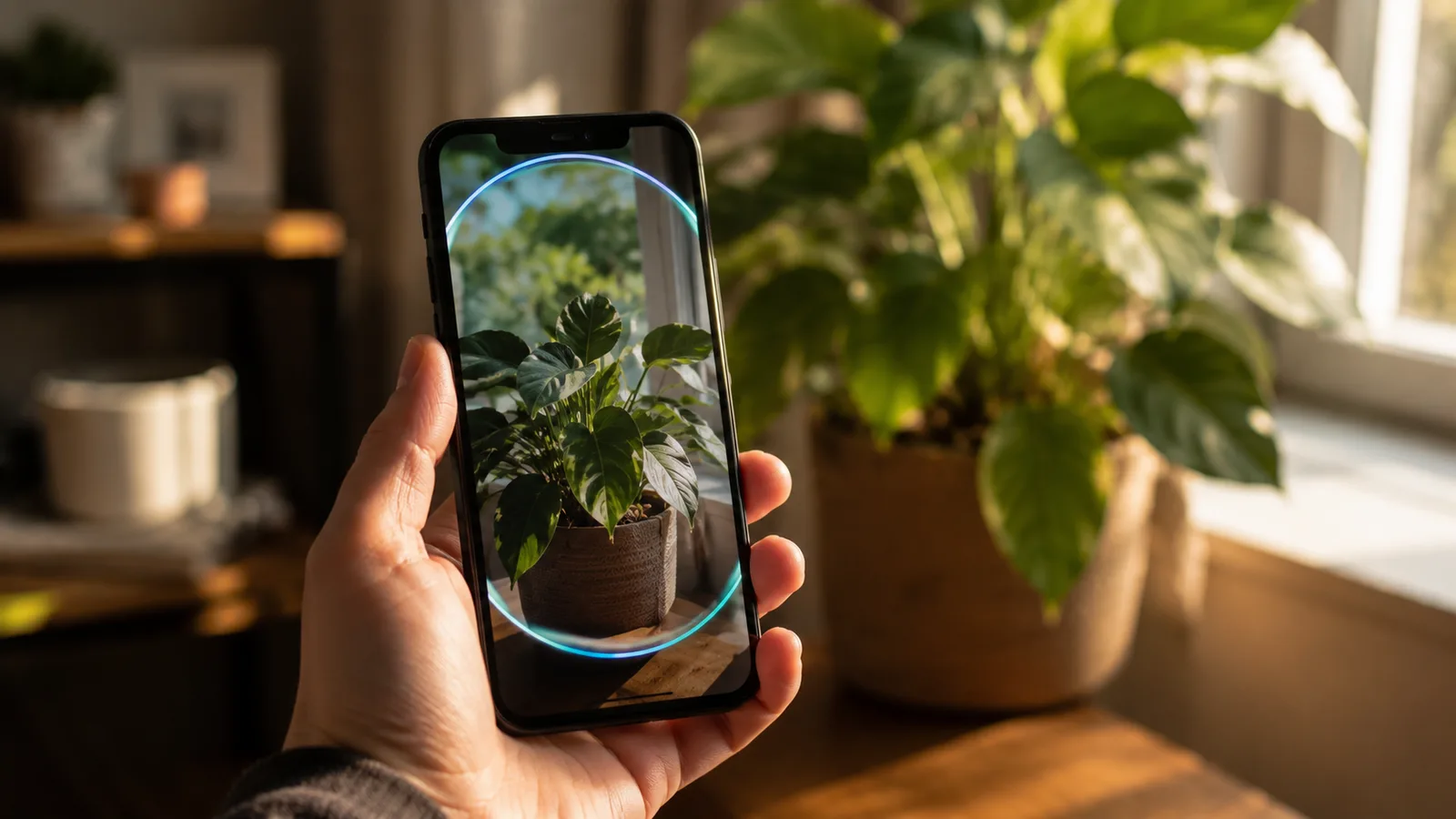
The camera is where Live earns its keep. Point it at a real problem and Gemini reacts to what it sees, which Google's own examples put to work in five ways: decluttering a room, brainstorming from a texture or colour you show it, troubleshooting a broken gadget, getting shopping advice while you browse, and asking for feedback on something you're making. Want to change how it sounds? Go to Settings, then Gemini's Voice, and pick one.
Gemini Live vs the Gemini app vs Gemini for Home
The confusion worth clearing up is that "Gemini" now covers three different ways to talk to the same assistant. Gemini Live is the immersive, hands-free voice conversation. The regular Gemini app is where you type prompts and read answers, or tap the microphone for a quick spoken question. Gemini for Home is the version built into Nest speakers and displays, where you say "Hey Google" and, for a longer chat, "let's chat" to go Live on the speaker.
There's a fourth wrinkle on Android: you can set Gemini as your phone's default voice assistant, replacing Google Assistant, so the power button or "Hey Google" brings up Gemini instead. All of these are the same underlying AI. They differ in where they run and how immersive the voice is, which is worth knowing before you go looking for a feature in the wrong place.
Gemini Live vs ChatGPT Voice Mode
Gemini Live and ChatGPT Voice Mode are the two big real-time voice assistants, and they're more alike than not: both let you talk naturally, interrupt, and share your camera or screen. The differences come down to cost and ecosystem.
| Gemini Live | ChatGPT Voice Mode | |
|---|---|---|
| Cost | Free | Free, with a daily Advanced-voice cap |
| Camera and screen share | Free | On paid plans |
| Where it runs | Android and iPhone app | Android, iPhone, and web |
| Plugs into | Google apps: Gmail, Maps, Calendar, YouTube | Not tied to one ecosystem |
| Interrupt anytime | Yes | Yes |
The honest read: if you live in Google's apps and want camera help without paying, Gemini Live is the easier pick. If you want voice on the desktop too, or you're already in ChatGPT, Voice Mode holds up. Neither is a runaway winner, and for most people the one that's already on their phone wins by default.
What it's good at, and where it frustrates
Gemini Live is strong at hands-free, in-the-moment help and weaker at anything precise or long. Talking through an idea on a walk, getting a plain-language explanation, or pointing the camera at a error message or a plant is where it shines, the response is quick and the camera genuinely helps.
The frustrations are the ones every voice AI shares. It can be confidently wrong, and the camera is no exception: it will name the wrong plant or misread a label as surely as it misreads text, so check anything that matters. It needs a connection, so it's useless offline. It leaves only a transcript, not a tidy record. And it can be over-eager, jumping in during a pause before you've finished. For quick, spoken, visual questions it's genuinely useful. For detailed or exact work, drop back to typing, or reach for a focused tool like Gemini Gems.
Getting the most out of Gemini Live
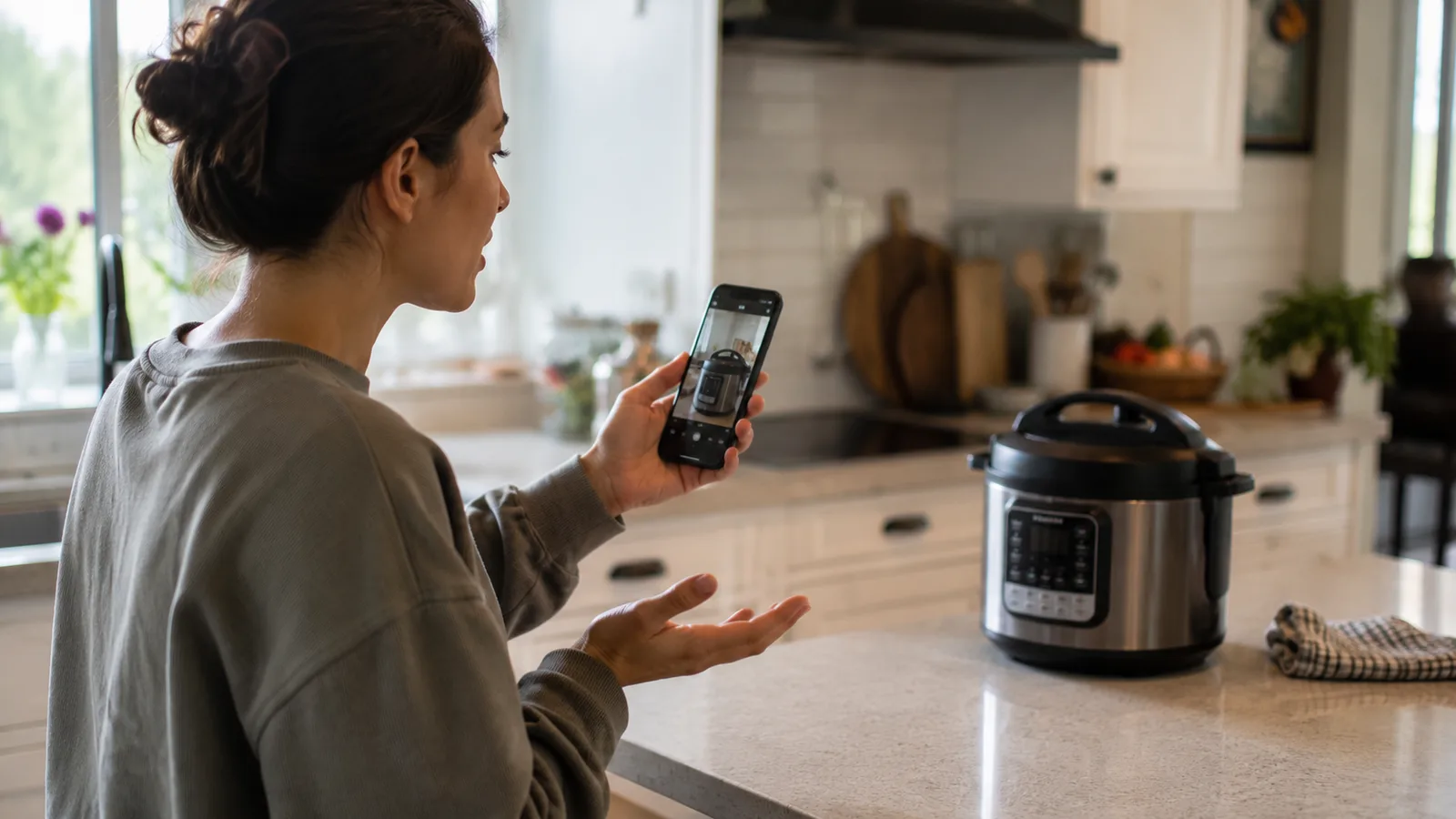
A few habits make the difference between it feeling magic and feeling flaky. Point the camera at one clear thing rather than a cluttered scene, so it isn't guessing which object you mean. Tell it up front how you want it to answer, "keep this short" or "explain it like I'm a beginner," because by default it tends to ramble. Use screen sharing when the help is inside another app, a settings page you can't find your way around or a form you're stuck on, instead of trying to describe it out loud.
And know when to stop talking. The moment you need an exact number, a real citation, or a long structured answer, drop back to typing, where you can read and check the result. One thing worth remembering before you get personal with it: while a Live session is open, your microphone and, if you've enabled it, your camera are streaming, and that data can be used to improve Google's services depending on your settings. End the session when you're done rather than leaving it listening.
What this post does not cover
This is a plain-English guide to the Gemini Live feature, not a full manual or a promise of how it will behave on your device. It doesn't cover the developer Live API for building apps, the Telugu television channel of a similar name, or Gemini's typed features in depth, and it isn't legal or professional advice. Availability, supported devices, languages, and which features are free change often and by region, so confirm the current details in the Gemini app or Google's help pages. And like any AI, it can be wrong, so check what it tells you.
Sources
Frequently asked questions

Written by
Tapabrata Biswas
Tech Researcher
I test AI productivity tools and research home-automation gear the way most people use them. Not in a lab, but on an ordinary desk with an ordinary internet connection. The only test that matters: does it save you time?
Share the Post with Your Besties
Get the plain-English tech brief
One email a week on AI tools and smart-home tech. No jargon, no hype.