Gemini Canvas: What It Is, How to Use It, and Gemini Canvas vs ChatGPT Canvas (2026)
What Gemini Canvas is, how to use it for writing and building apps, whether it's free, and how it compares to ChatGPT Canvas, tested side by side.

Researched with AI assistance, reviewed and edited by Tapabrata Biswas.

In this article
Most AI chat scrolls your work away the moment you ask for a change. Gemini Canvas fixes that, and then does something ChatGPT's version can't touch: you describe an app or a game, and it builds a working one on the spot, right next to the chat. It's free, it's genuinely useful for both writing and code, and it's the feature that makes Gemini feel like more than a chatbot.
A quick note on the name, since "canvas" is overloaded. This is Google's Gemini Canvas, the AI workspace inside Gemini, not the Canvas learning platform or a wall print. It's the direct rival to ChatGPT Canvas, and we'll put the two head to head below.
What is Gemini Canvas?
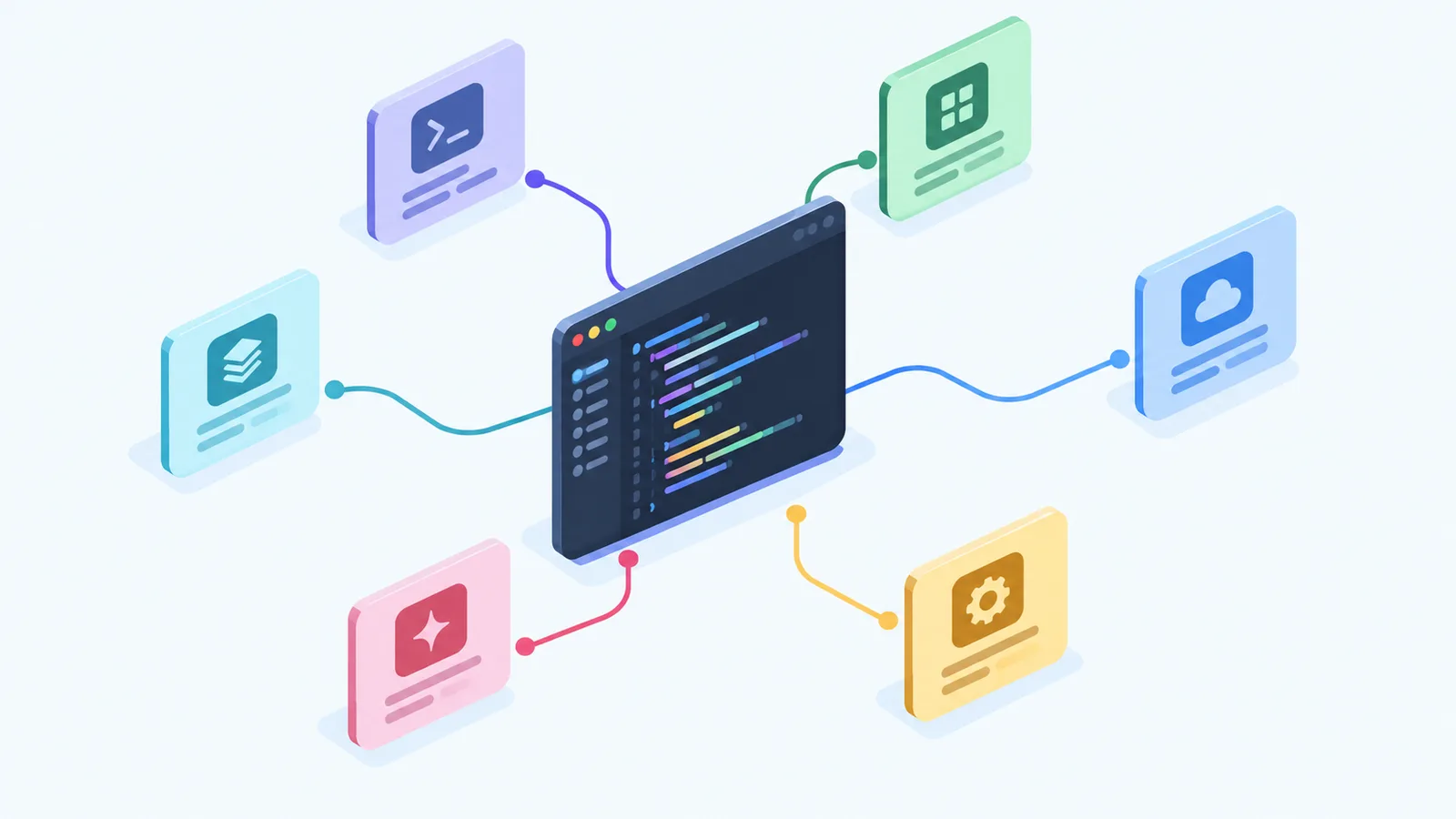
Gemini Canvas is an interactive workspace inside Gemini for writing, coding, and creating in one place, instead of a scrolling chat. Google launched it on 18 March 2025. It opens a split view: the conversation stays on the left, and an editable document or a live app preview sits on the right, so you both work on the same thing.
The reason it exists is that chat is a poor shape for anything you'll revise. In a normal thread, every edit prints a fresh copy and the good version scrolls off. Canvas keeps one living document or app in front of you, so "make the intro punchier" changes the intro you're looking at, and "add a reset button" updates the app you're testing.
How to use Gemini Canvas
To start, open Gemini on the web, select Canvas below the prompt bar, and type what you want or paste in a draft you already have. Whatever you make appears on the right, where you can edit the text or code directly, or highlight one section and ask Gemini to work on just that part, changing the tone, expanding it, or trimming it.
Changes save on their own. When you're done, you can export a document straight to Google Docs, send Python code to Google Colab, or share your work with a link. One limit to know: creating and editing really happen on the desktop web app; on mobile, Canvas is mostly for viewing what you've already made.
What you can build with it
Gemini Canvas covers three kinds of work, and the third is where it pulls ahead of most rivals. The first two are writing and code editing. The third is building things that actually run.
For writing, it drafts and refines documents, reports, and speeches, with quick controls for tone and length and inline feedback on what's working and what isn't. For code, it generates web apps, Python scripts, games, and simulations from a plain-English prompt and shows a live preview, so you describe an idea and watch it run. And it turns research into interactive formats: point it at a Deep Research report or your own notes, and it can spin up a quiz, an infographic, a web page, or a small app from the material. Ask for something concrete, a flashcard app for a list of French words, a tip calculator, a countdown timer that beeps at zero, and it writes the code and drops a working version into the panel that you can click and use straight away. The apps are prototypes, quick and rough rather than production-ready, but going from a sentence to a working thing in a minute genuinely changes what you'll attempt.
Gemini Canvas vs ChatGPT Canvas
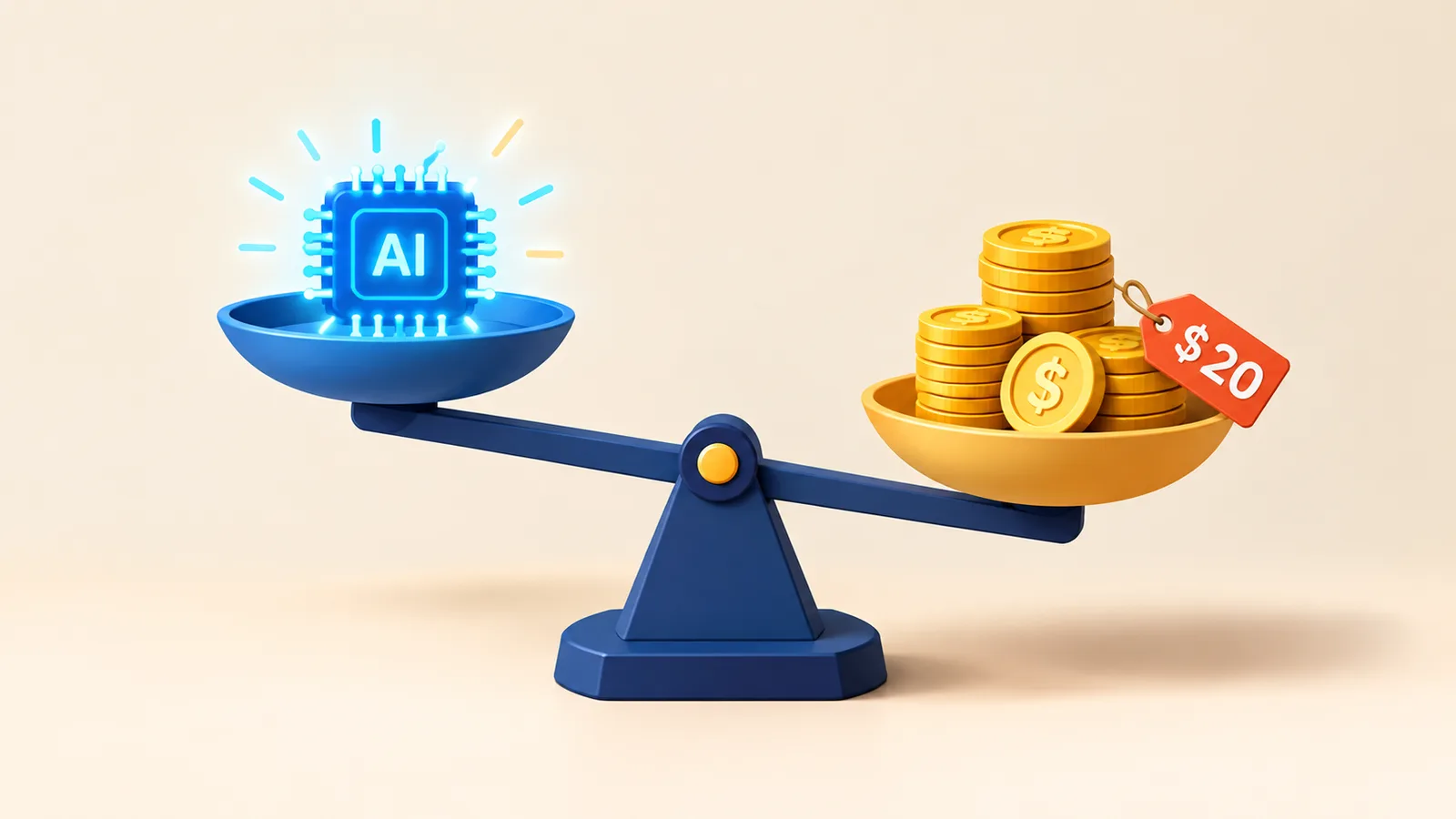
Gemini Canvas and ChatGPT Canvas are the two big split-pane AI workspaces, and side-by-side testing keeps landing on the same split: Gemini is the better free, visual, app-building tool, while ChatGPT is the stronger writer.
| Gemini Canvas | ChatGPT Canvas | |
|---|---|---|
| Cost | Free | Needs ChatGPT Plus ($20/month) |
| Strongest at | Visuals, apps, quick feedback | Long documents, tone control |
| Build an app or game from a prompt | Yes, with a live preview | Limited |
| Turn research into a quiz or infographic | Yes | No |
| Export | Google Docs, Colab, shareable link | Copy out |
The honest read: if you want to build a quick app, make something visual like an infographic or quiz, or just not pay, Gemini Canvas is the easy pick, and the Colab export is a real bonus for anyone who codes in Python. If your work is polishing a long document, where you want fine control over tone and structure, ChatGPT Canvas still edges it. Most people will be happy on whichever assistant they already use, and Gemini being free tips a lot of casual cases its way.
Is it free, and what do you need?
Gemini Canvas is free for every Gemini user, with no separate charge for the workspace, the app-building, or the exports. All you need is a Google account and the Gemini web app; it's available everywhere the Gemini app is, in every supported language.
Paying does add something. Google AI Pro and Ultra subscribers run Canvas on Gemini 3, Google's more capable model, with a much larger context window (around a million tokens) for bigger, more complex projects. For everyday writing and small apps, the free tier is plenty; the paid model mainly helps when a project gets long or intricate.
Getting the most out of Gemini Canvas
A few habits make it click. For an app, describe it like a spec, what it should do, what goes in, and what comes out, because a vague "make me a tool" gets a vague result while "a timer that counts down from a number I type in and beeps at zero" gets something usable on the first try. Edit surgically: highlight the one paragraph or the one function you want changed and ask for just that, rather than regenerating the whole piece and losing the parts that were already right.
Iterate on the live preview, not the code. Watching the app run tells you what's wrong faster than reading through it. And move work out once it's ready, to Google Docs for a document you'll polish carefully, or to Colab for Python you'll keep building on, instead of treating Canvas as the final home for either.
The limits worth knowing
Canvas is impressive, but a few things temper it. Its apps are prototypes: great for a demo or a first draft of an idea, not a shippable product, so treat the generated code as a starting point you review and harden. On long-form writing it trails ChatGPT for nuance and control, so a book chapter or a careful essay may still be better handled elsewhere or exported to Google Docs to finish. Real editing is a desktop-web job; the mobile app mostly lets you look. And it's still Gemini underneath, so it can be confidently wrong in a document or introduce a bug in code, which means you check the output rather than trust it. Used with those caveats, it's one of the most useful things in the Gemini app, especially once you try building something and watch it run. For a reusable assistant rather than a one-off workspace, Gemini Gems is the companion feature.
What this post does not cover
This is a plain-English guide to the Gemini Canvas feature, not a full manual or a promise of how it will behave on your project. It doesn't cover the Gemini API, Google's enterprise Canvas, or production app development, and it isn't legal or professional advice. Features, models, and which capabilities are free change often, so confirm the current details in Gemini or Google's help pages. And a Canvas document or app can be wrong, so check what it produces against a real source or a proper test.
Sources
Frequently asked questions

Written by
Tapabrata Biswas
Tech Researcher
I test AI productivity tools and research home-automation gear the way most people use them. Not in a lab, but on an ordinary desk with an ordinary internet connection. The only test that matters: does it save you time?
Share the Post with Your Besties
Get the plain-English tech brief
One email a week on AI tools and smart-home tech. No jargon, no hype.